
Record Drives to a USB Stick with TrackTune
With TrackTune, the car records its data to any USB stick that holds a miatafy.json file. TrackTune’s recorder on the head unit starts within about a second of the car mounting the stick, and each drive gets its own folder of files for RaceChrono, Circuit Tools, RaceRender and spreadsheets.
TrackTune comes with every ScreenTune license at no extra charge. Follow get started with TrackTune for installation.
Recording needs FastData on ScreenTune 1.2.0 or later, which the car gets with Meters or with the 10 Hz GPS setting. Install that package first: once the car runs it with Meters or 10 Hz GPS, the car records whenever a recording stick is inserted, including cars that never had TrackTune before. A car with neither, or on an older ScreenTune package without TrackTune, doesn’t look for a recording stick, so a stick records nothing and shows no error. With Meters, a dashboard with the Drive recorder TrackTune widget shows the recording and stops it cleanly.
TrackTune’s channel scaling is confirmed on the ND MX-5. On other cars recording works the same way, but it’s less tested, and some values may be scaled wrongly until they’ve been checked on that model.
Make the file in My ScreenTune
Section titled “Make the file in My ScreenTune”Make a recording stick in My ScreenTune, available for every active license with Meters or 10 Hz GPS, builds miatafy.json in your browser and downloads it. Pick the exports you want; all four are ticked to start. You can add start/finish lines for the tracks you drive. Its advanced settings cover CSV units, rows per second, extra channels such as coolant temperature and manifold pressure, the folder drives are saved in, and how GPS and timing are placed.
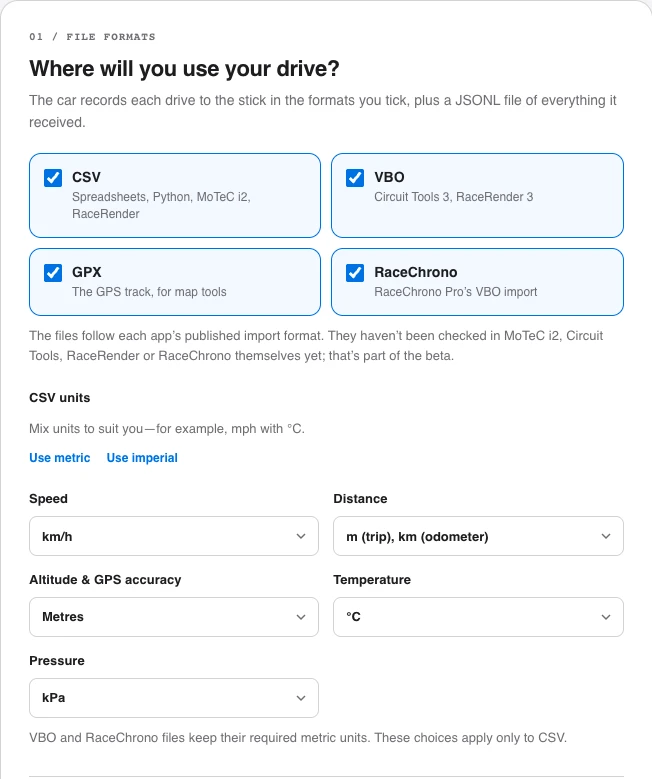
Local browser example; no recording or package is created.
The file works in any car with Meters or 10 Hz GPS on ScreenTune 1.2.0 or later. If you add start/finish lines, it includes their names and coordinates.
You can also write it by hand. This is the file the page makes with its starting choices:
{"version":1,"fastdata":{"outputs":[{"format":"csv"},{"format":"vbo"},{"format":"gpx"},{"format":"racechrono"}]}}Save it as plain UTF-8 text named exactly miatafy.json, with straight quotes ("). Curly quotes, a UTF-16 save or a rich-text file make it unreadable, and nothing records. In TextEdit on a Mac, choose Format → Make Plain Text and turn off Edit → Substitutions → Smart Quotes before typing. On Windows, Notepad saves UTF-8 by default; don’t pick UTF-16.
Individual CSV units
Section titled “Individual CSV units”The recording-stick page lets you choose speed, distance, altitude/GPS accuracy, temperature and pressure units separately, such as mph with °C. Metric and imperial buttons fill in all five choices. VBO and RaceChrono keep their required metric units.
Custom combinations require the TrackTune recorder delivered with ScreenTune 1.1.0 or later; earlier recorders don’t support them. Older recorders reject
unit_overrides and record JSONL only. Until your car has that update, use either
preset. The metric distance default uses meters for distance and kilometers for
the odometer; choosing Kilometers puts both in kilometers.
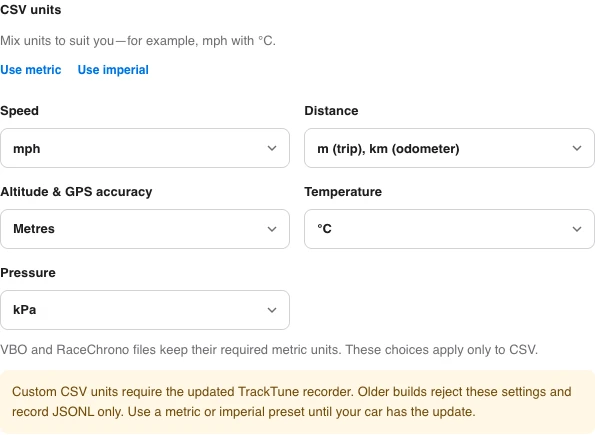
Local browser example. Mixing units shows the recorder compatibility warning.
Start/finish lines
Section titled “Start/finish lines”A recording stick can carry up to 16 start/finish lines, one per track or layout you drive. The car watches every line while it records. The first one you cross in its direction, inside its width, starts lap timing, and that line stays the start/finish for the rest of the drive. Until a stick line activates, your dashboard’s manual line or automatic detection stays in use. A drive that crosses none of the stick lines times laps as it would without them.
Lines need FastData 1.1.4, included in ScreenTune 1.1.2, or later. FastData is TrackTune’s recorder on the head unit. FastData 1.1.3 and older don’t know the lines setting, so they reject the whole file: the stick records only the JSONL file, with no CSV, VBO, GPX or RaceChrono export, and the Drive recorder widget shows BAD CONFIG. The recording-stick page warns about this whenever the file has lines. Leave lines out until your car has the update.
Each line is the same shape as the line you place on a course map:
| Field | What it is | Accepted |
|---|---|---|
| Name | Optional, for your own reference | 1–32 bytes of UTF-8, no quotation marks, backslashes or control characters. Accented letters take 2 bytes, most emoji 4 |
| Latitude, longitude | The line’s center, in decimal degrees | −80 to 80, and −180 to 180. Kept to 7 decimal places, about 1 cm |
| Crossing direction | The way you drive across the line, clockwise from true north: 0 north, 90 east, 180 south, 270 west | 0 up to but not including 360. Kept to 0.1°, so 359.96 becomes 0 |
| Width | The gate across the track, centered on the point | Whole meters, 5–200. The page starts at 20 |
On Make a recording stick, Add a line adds a row. Paste a latitude, longitude pair from Google Maps into Latitude and it fills both fields. Add from a dashboard course copies a line you placed on a course map in the dashboard builder, named after the course’s place. Only courses with a manually placed line are listed.
Two lines that match after rounding (the same position, direction and width, whatever their names) make the file invalid, so the page asks you to remove one.
A stick line replaces the dashboard’s line. Once a stick line is active, it overrides a line placed by hand on a dashboard’s course map, and the map draws the stick’s line instead. Recording must be running for a stick line to activate. When recording ends, the dashboard’s latest manual or automatic choice returns. Changing the active line clears lap history and its best-lap reference.
VBO files carry a start/finish gate. Each vbo-0000.vbo part can include a [laptiming] start gate. It uses the active stick line; before activation, it uses the only configured line, or the nearest line within 5 km of a recent valid GPS fix. If none qualifies, that part has no gate. This follows the VBOX format; importing it into Circuit Tools and RaceRender still needs verification. RaceChrono exports do not carry this gate: RaceChrono uses its track library or a track you define.
Sectors are set on the dashboard. The lap timer divides the best lap into 2–6 equal-distance sectors. Stick lines set start/finish only; they do not define sector boundaries. See lap timing.
Written by hand, lines go in a lines list in the fastdata section:
{"version":1,"fastdata":{"outputs":[{"format":"csv"},{"format":"vbo"}],"lines":[{"name":"VIR Full","lat":36.5628841,"lon":-79.2071353,"bearing":270,"width":20}]}}lat, lon, bearing and width are required; name is optional. Any other key, a value out of range, or more than 16 lines makes the car ignore the file’s settings, as with any other bad setting.
Set up a recording stick
Section titled “Set up a recording stick”- Use a second stick. Format a USB stick as FAT32, following the USB requirements.
- Keep it separate from your ScreenTune USB. A
miatafy.jsonon the install stick would start a recording onto the installer. - Put
miatafy.jsonat the top level of the stick, not inside a folder. If your browser saved a second download asmiatafy (1).json, delete the oldmiatafy.jsonand rename the new one. Windows hides the.jsonby default, so type onlymiatafythere: typingmiatafy.jsonmakesmiatafy.json.json, which the car ignores. - Eject it cleanly. On a Mac, run the clean-and-eject command.
Drive recorder widget
Section titled “Drive recorder widget”Add Drive recorder to a custom dashboard and select it to set its controls.
Shows whether the USB recorder is recording, for how long, and how much. With controls on, it’s the dashboard’s Start and Stop & Save control.
- Recorder: Commander is Controls or Status only. With Controls, turn the Commander to the recorder and press to open Start / Stop & Save. Stopping needs a second press. Layout is Two lines or One line, with Status dot, Detail, Status size, and Detail size.
- Colors: Status, Detail, Recording, Off, Starting / saving, Saved, Warning, Failed, and Commander focus.
A recording stick starts recording on its own once the car mounts it. The widget shows that recording and stops it cleanly. Set the controls up before you drive, and don’t operate them while moving.
Record a drive
Section titled “Record a drive”- Start the car and plug the recording stick into a media/data USB port.
- Recording starts within about a second of the car mounting the stick. If the stick is already plugged in, it starts once the car has finished starting up.
- Drive. The Drive recorder widget shows
RECwith the time recorded, andSTICKwith the size so far. - Stop and save with the recorder widget (Stop & Save, pressed twice), or by switching the car off. Both finish the drive’s files.
- Remove the stick after it’s stopped.
Don’t pull the stick while it’s recording. The drive’s finished parts survive, but up to about 5 s at the end is lost and the open files keep a .partial name.
A file with a bad setting still records. If the car can’t use a setting in miatafy.json, the widget shows BAD CONFIG and the stick records only the JSONL file, in the default folder. Open the widget to see which setting it rejected, then make the file again.
An unreadable file records nothing. If miatafy.json isn’t valid JSON (curly quotes, a missing comma, a UTF-16 or rich-text save), the widget shows CONFIG UNREADABLE and nothing is recorded. Make the file again in My ScreenTune, or fix it, then plug the stick in again.
When the stick fills, recording stops with a low-space warning. The car keeps 64 MiB of the stick free and never deletes old drives.
After Stop & Save, the stick stays stopped until you remove it, so it doesn’t start a new recording straight away. Start in the recorder widget still works.
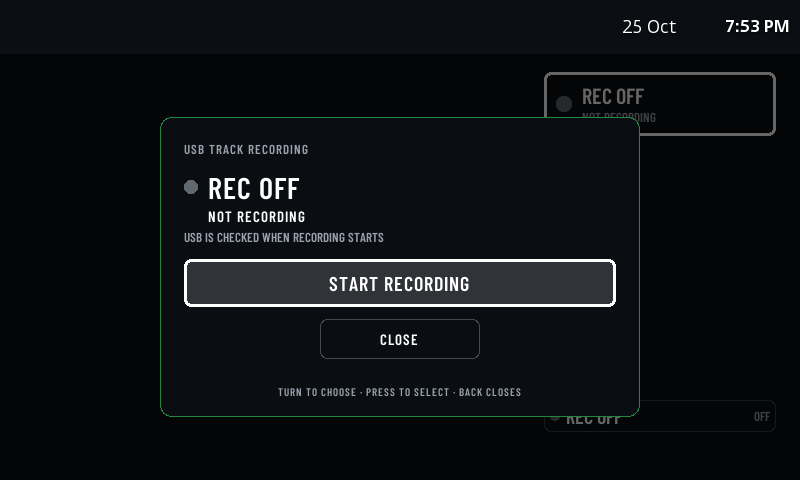
Physical CMU capture of the idle control sheet on a sample dashboard, using the installed recorder’s real status. No recording was started for this capture.
Find the files
Section titled “Find the files”With the default settings, each drive gets its own folder inside MIATAFY on the stick. A folder name uses the date and drive ID, for example 2026-10-23/2026-10-23_143005/. If you set a folder in the advanced settings, drives go there instead, still one folder per drive.
| File | What it is | Made for |
|---|---|---|
csv-0000.csv | One row per tick, 20 a second by default, metric units by default | Excel, Numbers, Google Sheets, Python, MoTeC i2, RaceRender |
vbo-0000.vbo | VBOX-format file with readable channel names | Circuit Tools 3, RaceRender 3 |
racechrono-0000.vbo | VBOX-format file laid out for RaceChrono’s importer | RaceChrono Pro |
gpx-0000.gpx | The GPS track | RaceRender, Google Earth, gpx.studio, Garmin BaseCamp |
part-0000.jsonl | Every record as received, always written | Your own scripts |
manifest.json, config-used.json | The drive’s summary and the settings it used | Support, if something looks wrong |
The files follow those apps’ published import formats, and the VBO and RaceChrono files have been read back with independent VBO readers. They haven’t been checked in MoTeC i2, Circuit Tools, RaceRender or RaceChrono themselves yet. If one doesn’t open, send the drive folder to support (below).
A long drive splits into -0001, -0002 and so on. Each part opens on its own.
The car’s clock can start at 1970 until it has a GPS or network time, so a drive can land in a folder named unknown-date. The files inside are complete.
What’s recorded
Section titled “What’s recorded”By default the CSV, VBO and RaceChrono files carry 21 channels, and the GPX file is the GPS track only. The 21 are road speed, RPM, the four wheel speeds, latitude, longitude, altitude, GPS speed, course, vehicle heading, GPS accuracy, GPS fix, gear, reverse, accelerator pedal position, brake switch, yaw rate, and lateral and longitudinal G.
- Gear is empty in the CSV in neutral, with the clutch pressed, and between gears. The VBO and RaceChrono files write
0there, which their apps show as neutral. - Lateral G is computed from yaw rate and front wheel speed. It isn’t valid in a slide, where it reads high.
- GPS updates once a second unless the optional 10 Hz GPS setting is on (Change features in My ScreenTune). With it on, GPS updates about 10 times a second on newer MX-5s (about 2021 on) and twice a second on earlier cars (about 2016–2020) while Mazda Navigation is not using the receiver, and once a second with Navigation running. The year split is approximate, because it follows which GPS receiver the head unit has. Positions between fixes are interpolated, so the trace is a line through the fixes.
- In the CSV, a cell is empty when its value is missing or out of date, and a stale value is never repeated. VBO and RaceChrono files have no empty value, so they write
0instead.
The extra channels in Make a recording stick add coolant temperature, manifold pressure, outside temperature, the engine computer’s gear, the shift indicator, road slope, distance, the odometer, turn signals, headlights and the driver’s seatbelt. Values whose scaling isn’t confirmed aren’t offered.
Open the files
Section titled “Open the files”RaceChrono Pro
Section titled “RaceChrono Pro”- Copy
racechrono-0000.vboto the phone, with a USB-C or Lightning stick reader and the Files app, cloud storage, or email. - In RaceChrono, open the top menu and choose Import.
- Add the file with the File browser option and choose the VBO data type.
- Press Start. RaceChrono creates a session and times laps against its track library or a track you define.
Use RaceChrono Pro: on iOS it’s the only edition, and on Android it’s Pro or the Pro upgrade. Extra channels need v7.5 or later.
Circuit Tools 3
Section titled “Circuit Tools 3”Choose File → Load VBO File, or drag vbo-0000.vbo into the window. Circuit Tools detects the circuit from the GPS positions (Racelogic: CT3 File menu).
RaceRender 3
Section titled “RaceRender 3”Add vbo-0000.vbo as an input file and pick a data overlay template. On the input file’s configuration screen, choose Vehicle Speed: velocity is GPS speed and speed is the car’s road speed. The gear channel drives the gear display (RaceRender: data overlays).
Spreadsheets and scripts
Section titled “Spreadsheets and scripts”csv-0000.csv has one header row with units in the column names, then data. The time column is seconds since the drive started, and utc is GPS time once the car has a fix.
Send a drive with a problem report
Section titled “Send a drive with a problem report”Recordings stay on your stick: nothing is uploaded, and we can’t see them unless you send them. To report a problem, zip the whole drive folder and attach it to an email to support@miatafy.com, with what happened and roughly when. If the zip is too big to attach, send the email anyway and say so. An emailed drive is handled like any other support email, under the privacy policy.