
Home Screen Themes and Shortcuts
Open a design from My Home designs in My ScreenTune and select Themes to browse the built-in themes. The theme list shows every theme with its preview, so you can compare them before you sign in. Designs other owners published are in the community gallery; see community Home themes.
Four layouts decide what you can move
Section titled “Four layouts decide what you can move”| Layout | What you can change |
|---|---|
| Mazda-style round buttons | Five shortcuts in Mazda’s curved arrangement: destinations, order, labels, button art, and background. |
| Panel layouts | Five shortcuts held in place as panels, tabs, or lanes. Change destinations, order, labels, and background. Individual themes may fix their button art or colors. |
| Illustrated scenes | Five shortcuts on an illustrated or photographed scene. Move and resize them, and change destinations, order, labels, icons, and background. |
| Blank styles | Start with plain tiles, Meters and More included, and change menus, positions, colors, and layers. |
Choosing a theme replaces the open design with that theme, background included, and keeps the design’s name. Your other designs are unchanged; start a separate one with New design in My Home designs. Keep my destinations and labels carries your shortcuts’ destinations, labels, and order into round-button, panel, and scene themes. Nothing else carries over. Blank styles start with their own shortcuts. Undo brings back the design from before the theme change.
Choosing Mazda Classic gives you an editable copy of the factory look. To put Mazda’s own Home screen back in the car, use restore factory Home instead.
Change a shortcut’s label, destination, and order
Section titled “Change a shortcut’s label, destination, and order”- Select a shortcut from the left-hand list or the preview.
- Enter its Label.
- Choose its destination under Opens.
- Use the up and down arrows beside it in the shortcut list to change the order.
- Select Try it to check the selection order with the preview knob.
Destinations include Applications, Music, Phone, Navigation, Settings, Meters, and your own menus. A shortcut to Meters needs Meters in the car’s ScreenTune package.
In the five-shortcut layouts, factory destinations displaced from Home stay reachable through More. Test that menu as well as the first screen.
Add a menu and link it from Home
Section titled “Add a menu and link it from Home”Select Add menu under Screens. To reach it from Home, select a Home shortcut and choose the new menu under Opens. Check the route into the menu and back out in Try it.
Ready-made Home layouts can lock their five shortcut positions. Other screens in the same design may not have that restriction: the editor shows which controls can be added, moved, or resized on the selected screen.
Change the background
Section titled “Change the background”Under Background, choose an image from the library or upload a PNG, JPEG, or WebP. Large images are resized for the screen. Fill the screen crops the image to fit, and Fit the whole image keeps all of it.
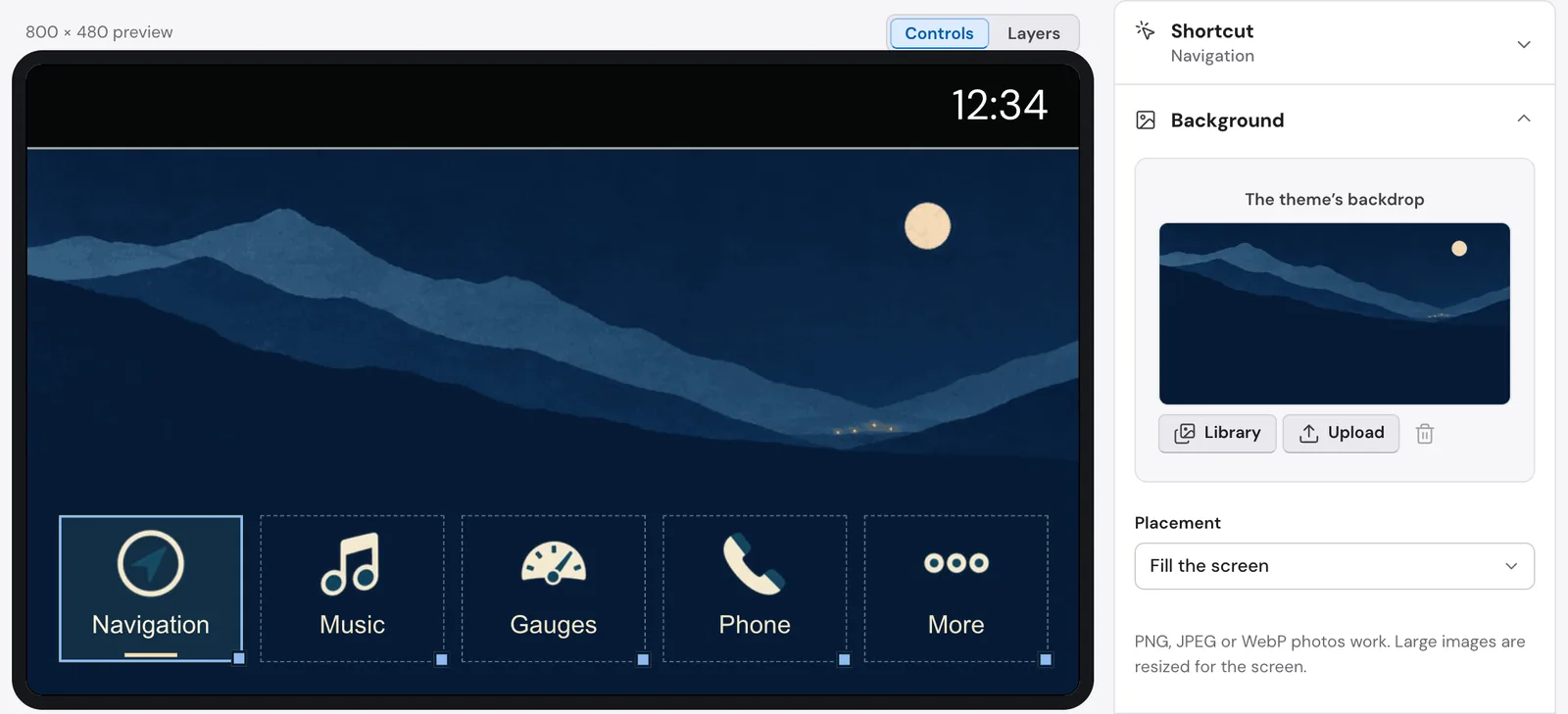
Keep labels and the selected shortcut easy to see against the background. Check both selected and inactive controls in the preview before saving.
Change button artwork where the theme allows it
Section titled “Change button artwork where the theme allows it”The Button look area shows the controls available for the selected theme. Where supported, choose artwork from the library or upload an image. Make button artwork creates matching inactive and selected treatments from an illustration; the available states depend on the layout.
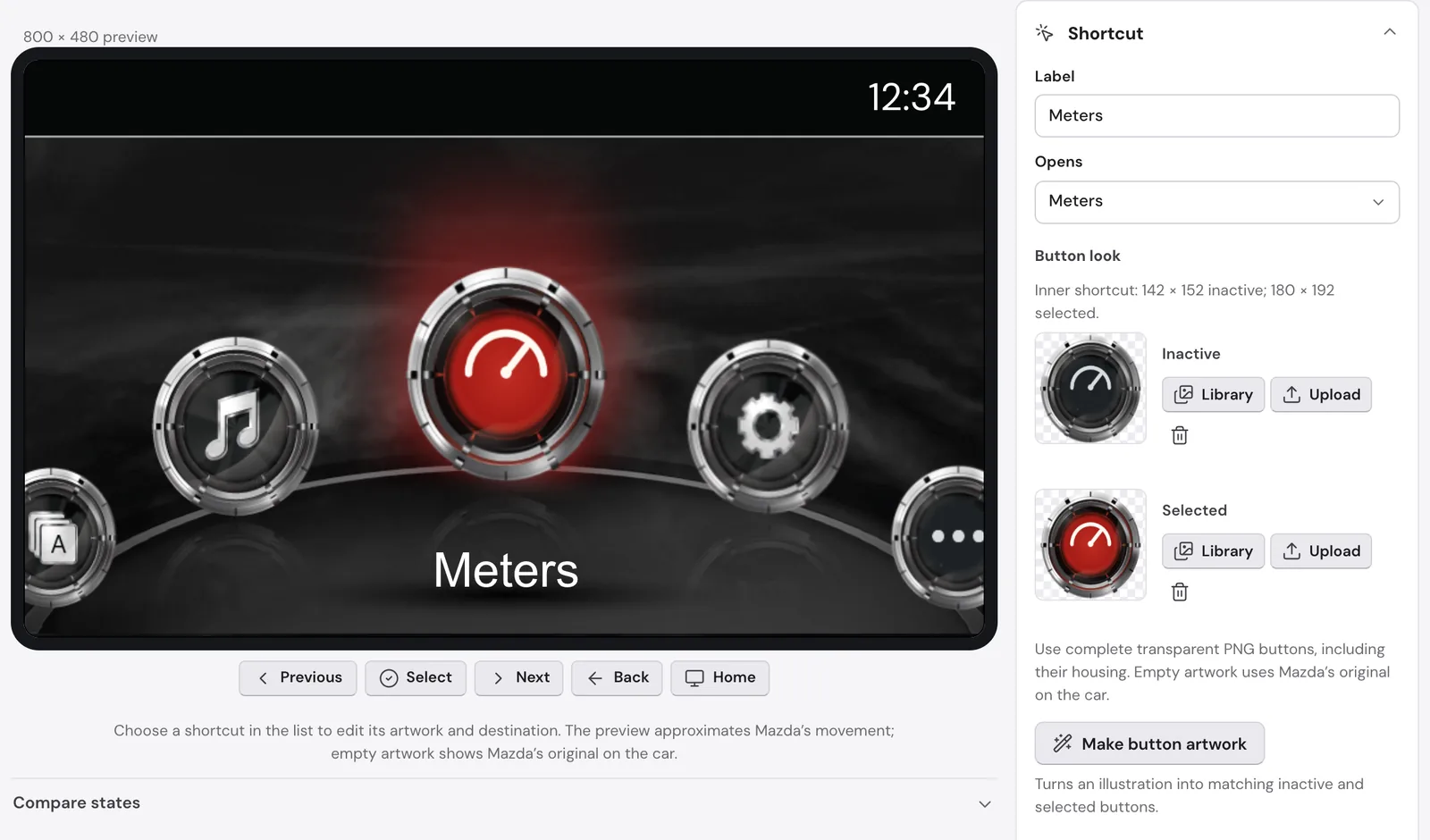
Some panel themes draw their own buttons and expose only an icon or other limited artwork control. Their theme note says so. Uploaded complete Mazda buttons must be transparent PNGs, including their housing; the editor shows the required slot sizes.
Fine-tune positions, colors, and layers
Section titled “Fine-tune positions, colors, and layers”Colors and text and Fine-tune expose the selected design’s additional settings. Free layouts support positioning and resizing controls, arranging several controls, and editing layers. A ready-made theme may lock those options to preserve its layout.
If the editor reports that a design or its images exceed the supported size, simplify the artwork. More → Remove unused images removes assets the current design no longer uses. Save only after resolving the reported problem.
When the design is ready, save and send it to the car.