
Send Your Meters Themes to the Car
Meters themes you choose in My ScreenTune are saved to your account. The car gets them when you install a new ScreenTune package. Get an update on your Meters themes page requests that package, and My ScreenTune emails it to you when it is ready.
Request a package with your themes
Section titled “Request a package with your themes”- In My ScreenTune, select Change themes and dashboards on the Meters card.
- Finish your changes to the theme list and any custom dashboards. The list saves as you go.
- When the banner at the top reads These changes aren’t on your car yet, select Get an update.
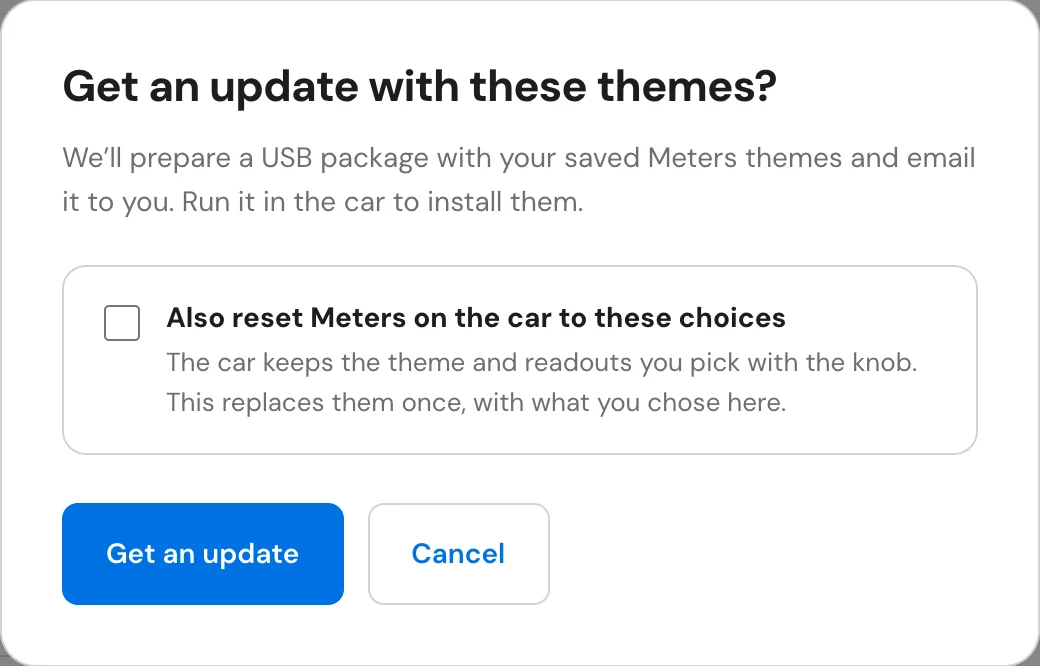
- In Get an update with these themes?, decide whether to tick Also reset Meters on the car to these choices (below).
- Select Get an update.
The banner changes to Your update in progress will include these, with a line about when to expect the email. See its progress opens My ScreenTune, where the package also appears for download when it is ready.
The package is a complete ScreenTune package for the car: its current features plus your saved Meters themes. Copy it to the USB in place of the previous package.
Changes made while the package is prepared
Section titled “Changes made while the package is prepared”While the banner reads Changes you make here are added until we start preparing it., ticks and saved designs go into the same package.
Once it reads We’re preparing it now and will email you the USB package., the package is fixed. A change made after that turns the banner back to These changes aren’t on your car yet, with Your update in progress was prepared before these changes. Request another update to include it.
Install the package in the car
Section titled “Install the package in the car”- Download the package and copy it to the USB as described in USB requirements.
- With Mazda Connect on its home screen, insert the USB and wait for the SCREENTUNE prompt.
- Choose UPDATE, or REPAIR if the prompt shows the version you already have. Either one applies the whole package on the USB, themes included.
- Leave the USB in until Mazda Connect restarts, about two minutes.
- Open Applications → Meters and open the theme list to check it.
Update ScreenTune covers the prompt in detail. If the run ends on an error screen, follow an action that failed and do not run it again until support replies.
After the install, the banner on your Meters themes page reads Your car has these themes.
Replace the choices made in the car
Section titled “Replace the choices made in the car”Meters on the car remembers what you pick there: the theme on screen, and each theme’s readings and Full or Simple layout. A new package keeps those choices, so it changes which themes are in the list without undoing your setup. If the theme the car was on is no longer in the list, Meters opens on your Starts on theme instead.
Also reset Meters on the car to these choices replaces them once with what you chose in My ScreenTune. Tick it when you want the car to open on your Starts on theme with fresh settings. It applies to that package only. The box starts unticked every time, and later packages go back to keeping the car’s choices.
See what earlier packages carried
Section titled “See what earlier packages carried”Past packages at the bottom of the page lists each package with its date and the Meters it carried, for example “Track Day, Dawnline, Night Circuit and 4 more · starts on Track Day”. A package that reset the car’s choices adds “reset Meters”. A package without Meters reads “No Meters”.
Other packages carry your themes too
Section titled “Other packages carry your themes too”Every ScreenTune package prepared for the car includes the Meters list saved at that moment, including a feature change or a new release. If one of those is already on the way, you do not need a separate Meters update.
When you can’t send themes
Section titled “When you can’t send themes”| What you see | What to do |
|---|---|
| Meters isn’t in this car’s ScreenTune | The car’s package has no Meters. Select Add Meters, which opens a feature change with Meters highlighted. Select Miatafy Meters on Add-ons, request the update, then come back to choose themes. |
| No Get an update button | The car already has the saved list, an update is in progress, or the license is inactive. |
| A message that names one of your designs | That design can’t go on the car yet. Open it in the builder, fix the problems Checks lists, save, and try again. |
| Your last change isn’t saved yet. Try again in a moment. | Wait for Saved beside the list, then select Get an update again. |
| Too many requests. Please try again later. | Update requests are limited per hour. Wait, then try again. |
| We couldn’t request the update. Please try again. | Check the connection and try again. If it keeps failing, see get help. |
If Meters does not open or is missing from Applications after the install, see Meters troubleshooting.