
Remove ScreenTune and Go Back to Stock
If the car was stock before ScreenTune, REMOVE puts it back to stock. To guarantee factory software regardless of the car’s history, use a full firmware reflash.
REMOVE runs from the ScreenTune USB for this car. It puts back the files ScreenTune saved before its first install, deletes what ScreenTune added, and restarts Mazda Connect. The firmware version does not change.
Remove ScreenTune
Section titled “Remove ScreenTune”- Start the vehicle or switch the ignition fully on, and wait for the normal Mazda Connect screen.
- Insert the ScreenTune USB directly into a media/data USB port.
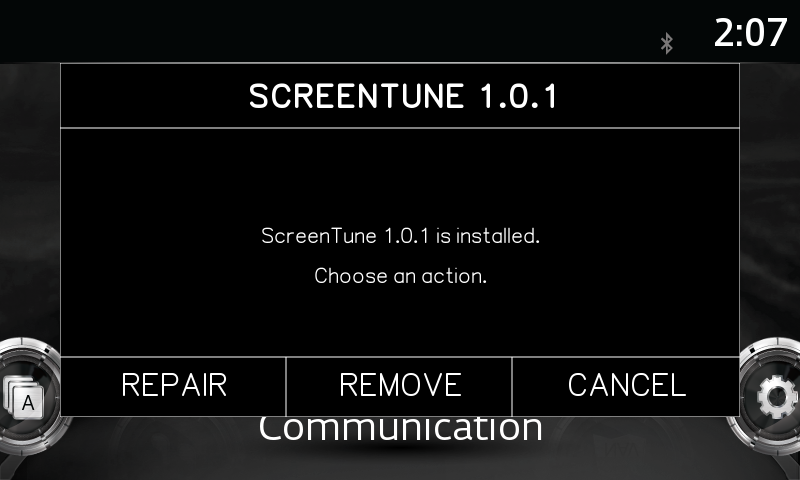
- Wait for the SCREENTUNE prompt. With ScreenTune installed it offers REMOVE next to REPAIR or UPDATE.
- Select REMOVE.
- Leave the ignition on and the USB connected. The screen shows “Uninstalling…”, then “Restarting…”.
- Wait for Mazda Connect to restart by itself and return to its normal screen. Then remove the USB.
- Check the restored state.
Which USB to use. Any ScreenTune USB made for this car works, whatever its version. REMOVE does not check the VIN. If you lost the USB, download the newest package from Downloads and prepare a drive.
What REMOVE restores and deletes
Section titled “What REMOVE restores and deletes”| Item | After REMOVE |
|---|---|
| Files ScreenTune changed | Restored from the checksummed copies saved at the first install |
| Files ScreenTune added, including the Miatafy app and Meters | Deleted |
| Speed-restriction settings changed by Touch while moving | Restored to their saved values |
| Meters theme, layout, and reading assignments | Deleted |
| Mazda services ScreenTune turned off | Start again, from the restored files |
| Firmware version | Unchanged |
| First-install backups | Kept on the CMU, so a later INSTALL works the same way |
MZD-AIO exception. If MZD-AIO tweaks were on the car before ScreenTune, REMOVE leaves
MZD-AIO’s opera.ini and fps.js files alone. REMOVE does not undo MZD-AIO. See
legacy AIO tweaks.
After REMOVE, inserting the USB again offers INSTALL.
The baseline is the car before ScreenTune
Section titled “The baseline is the car before ScreenTune”REMOVE restores the first-install baseline: the state of Mazda Connect at the first ScreenTune install. Tweaks or manual edits made before ScreenTune, for example by a previous owner, are part of that baseline and come back after REMOVE. A reflash, linked above, is the way to clear them.
Check the restored state
Section titled “Check the restored state”Check on a cold start. If the car was stock before ScreenTune, expect:
| Check | Expected after REMOVE |
|---|---|
| Startup disclaimer | Appears on a cold start |
| Touchscreen while moving | Locks once the car is moving |
| Reverse camera | Shows “Please Check Surroundings For Safety” |
| Interface beeps | Back on |
| Applications | No Miatafy or Meters entry |
| Android Auto | Commander-only input, if AA Touch was installed |
If REMOVE fails or the expected state does not return
Section titled “If REMOVE fails or the expected state does not return”An error screen. A failed REMOVE shows SCREENTUNE INSTALL ERROR with “This install experienced an error. Zip the contents of this USB drive. Email the ZIP to support@miatafy.com.” Press RESTART, then send the ZIP and the other items in get help with ScreenTune. Do not run REMOVE again until support replies.
ScreenTune behavior remains. If a ScreenTune change is still active on a cold start, or the car does not match the state you recorded before the first install, see recovery options. Contact support before you reflash.
Selling the car or visiting a dealer. See when REMOVE is enough.