
Update ScreenTune to a New Release
An update installs a new ScreenTune package over the one in the car. Your feature choices come from the new package, and your Meters settings stay as they are. It takes about two minutes and one automatic restart.
Get the new package
Section titled “Get the new package”New releases and changed setups arrive as a new ScreenTune-<version>.zip.
- A newer release. In My ScreenTune, select Get ScreenTune version. See get the latest release.
- Added or changed features. Request an updated download through add or change features. If it is built on the version you already have, the prompt offers REPAIR instead of UPDATE.
- From email. The package is also emailed to your order address when it is ready. The email link lasts seven days; after that, use Downloads.
When the build finishes, download the top package in Downloads. Until then, Downloads still shows your previous version.
Put only the new package on the USB
Section titled “Put only the new package on the USB”Format the drive, unzip the new package, and copy its contents to the top level, following the USB preparation guide. Do not copy the new files over the old ones: files from two packages on one drive cause a wrong or failed install.
Keep the reformatted drive as this car’s ScreenTune USB. The new package repairs and removes ScreenTune the same way the old one did.
Install the update in the car
Section titled “Install the update in the car”- Start the vehicle or switch the ignition fully on, and wait for the normal Mazda Connect screen.
- Insert the USB directly into a media/data USB port.
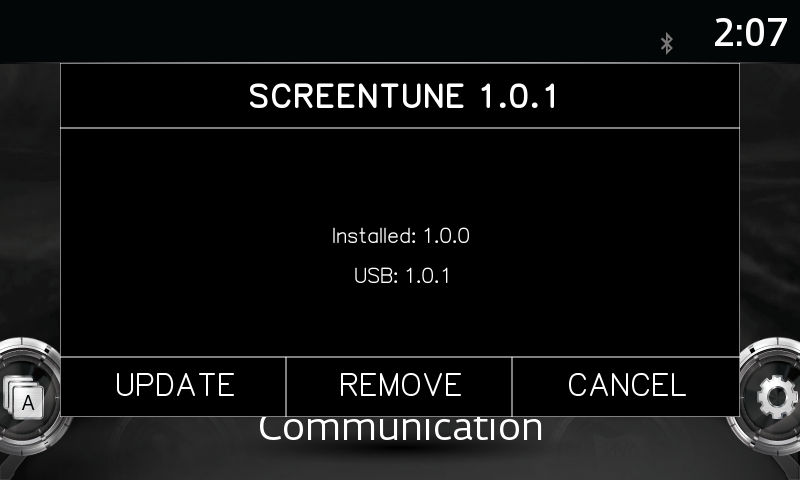
- Wait for the SCREENTUNE prompt. The title shows the version on the USB, and the text reads Installed: installed version and USB: new version.
- Check both versions. USB should be the version you downloaded. If the prompt instead says the version is already installed, see a same-version package shows REPAIR.
- Select UPDATE.
- Leave the ignition on and the USB connected until Mazda Connect restarts by itself and returns to its normal screen.
- Remove the USB and check the install.
The screen shows the same messages as a first install, from “Saving useful support info to your USB.” through “Restarting…”. See normal messages while ScreenTune works.
UPDATE also appears for an older package
Section titled “UPDATE also appears for an older package”The prompt offers UPDATE whenever the USB version differs from the installed one, older or newer. An old USB from a drawer will offer UPDATE and, if chosen, install that older version. Read both versions before you select it. If USB is older than Installed, select CANCEL and prepare the drive from the newest package in Downloads.
A same-version package shows REPAIR
Section titled “A same-version package shows REPAIR”A package with changed features built on the release you already run has the same version number as the installed one. The prompt then reads “ScreenTune version is installed. Choose an action.” with REPAIR instead of UPDATE. Select REPAIR: it applies the complete setup on the USB, so the new choices install. See repair ScreenTune.
What carries over
Section titled “What carries over”UPDATE restores the baseline saved at the first install, then applies the complete new package. Nothing from the old version is layered underneath.
- Feature choices. The car ends up with exactly the setup in the new package. A package from Get ScreenTune version keeps your current choices. A package from Change features has the new ones, so a feature you removed there is removed from the car.
- Meters settings. Theme, Full or Simple layout, and reading assignments carry over.
- The first-install baseline. It stays the same, so a later REMOVE still returns the car to its state before ScreenTune.
If the update fails
Section titled “If the update fails”A VIN or USB problem stops the update before anything changes. The message ends in “Nothing was changed.” and the installed version stays as it was.
A failure while changes are applied rolls the car back to the first-install baseline, then shows SCREENTUNE INSTALL ERROR. ScreenTune is then removed from the car, not left on the previous version. Your Meters settings are kept. Press RESTART, then follow an action failed: send support the USB contents as a ZIP and wait for a reply before you try again.