
Add or Change ScreenTune Features
Change features in My ScreenTune opens your saved ScreenTune configuration with every current choice already selected. Change what you want, confirm your firmware, and request a new package for the same car and license. Add-ons cost nothing extra with an eligible update, and a feature change does not restart your support or update dates.
- Sign in to My ScreenTune.
- Select Change features in Your setup, or an Add button such as Add Meters in Add to your car.
- Work through Vehicle, Setup, and Add-ons, then select Review update.
- On Review, check both boxes and select Request updated download.
- My ScreenTune shows Building your updated package. It usually takes a few minutes and is emailed to you too. To adjust it before it finishes, select Change this request. See follow the build.
- Download the package, prepare the USB, and run it in the car. Choose UPDATE, or REPAIR if the prompt shows the version you already have. Both apply the new setup. See Update ScreenTune or Repair ScreenTune.
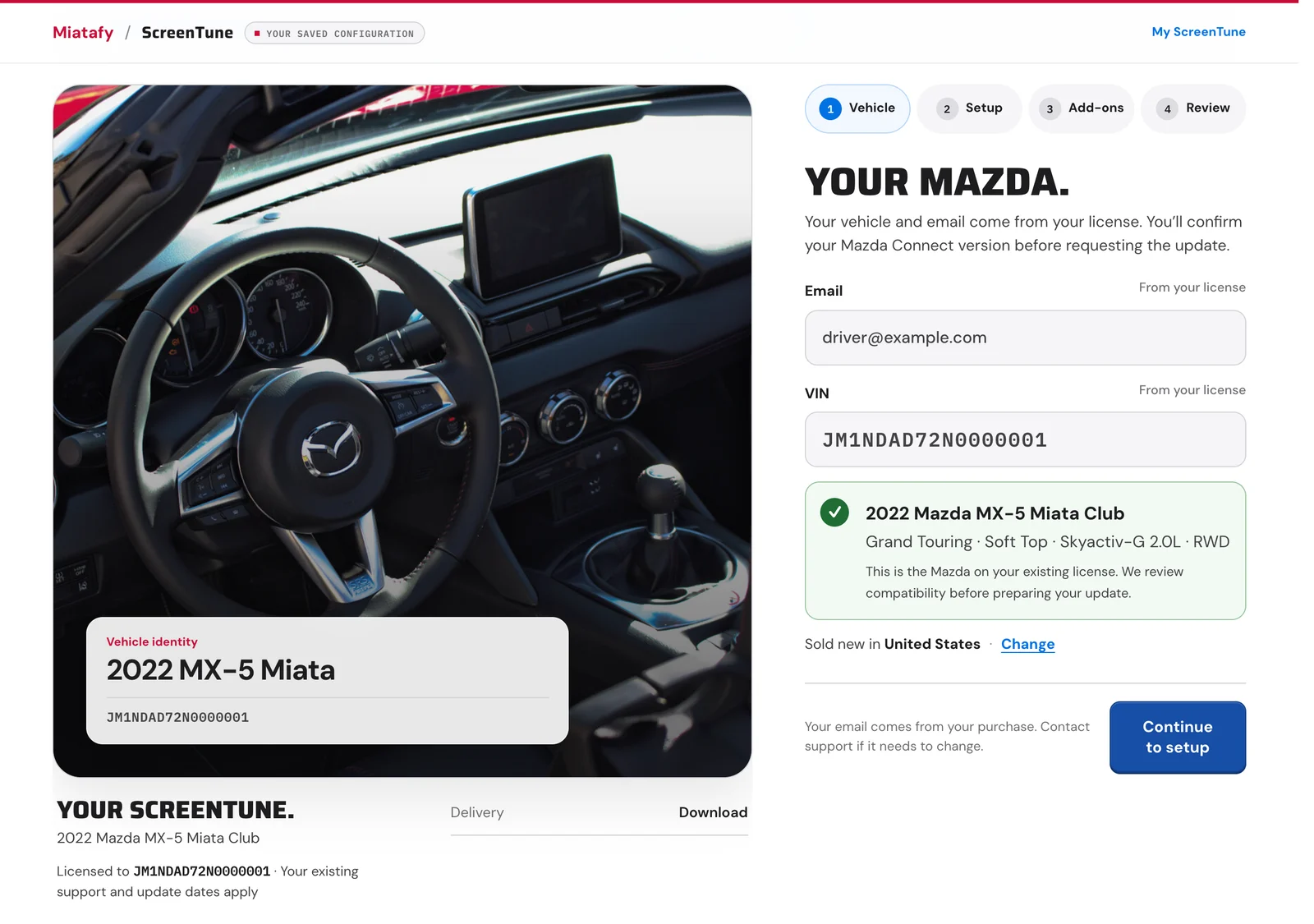
Vehicle: your car and email come from the license
Section titled “Vehicle: your car and email come from the license”The configurator opens with Your saved choices are ready. The Your Mazda. step shows the car on your license. The email and VIN are marked From your license and cannot be edited here; to change either, see email and ownership changes. Select Continue to setup.
Orders placed before VINs were collected have no VIN on file. Enter the full 17-character VIN once on this step. Changing it later requires support.
Setup: turn improvements and Mazda services on or off
Section titled “Setup: turn improvements and Mazda services on or off”Pick your changes. has two groups, each with a Customize button that lists every choice.
- Everyday improvements holds standard changes such as Touch while moving, Skip the startup disclaimer, and Disable interface beeps. Turn any one on or off.
- Mazda services you don’t use turns off built-in services such as Pandora, SiriusXM, or voice commands. Under Also available to turn off, select a service’s Turn off choice. To bring back one listed under Turned off for your Mazda, open Customize and tap it to keep it running. See turn Mazda services off or back on.
Add-ons: Meters, AA Touch, and Wireless CarPlay startup
Section titled “Add-ons: Meters, AA Touch, and Wireless CarPlay startup”The Add-ons step lists the three add-ons. One your package does not have yet is marked Available to add; select it and its card changes from Add for free to Added. An add-on you switch on or off is marked Will be added in this update or Will be removed in this update.
If you arrived from an Add button, that add-on is highlighted but not yet selected. Select it to include it.
| Add-on | What it adds | Read first |
|---|---|---|
| Miatafy Meters | Ten instrument themes and 59 live vehicle readings on the Mazda Connect screen, with no phone or OBD adapter | Meters, getting started |
| AA Touch | Touch control in Android Auto: tap maps, swipe lists, use the keyboard. The commander knob keeps working. | AA Touch |
| Wireless CarPlay startup | Starts the wireless network sooner and opens CarPlay when it connects, for cars already equipped with wireless CarPlay | Wireless CarPlay startup |
After a package with Meters is installed, choose which themes the car carries on the Meters theme list.
Review: confirm your firmware and authorization
Section titled “Review: confirm your firmware and authorization”Review your update. lists Your changes, then Everything else stays as saved. With no changes, it says Your feature choices are unchanged. We’ll build the latest software your license covers.
Both boxes must be checked before Request updated download works:
- My Mazda Connect is still on 74.00.324. Check Settings → System → About on the car
first (how to read it). It must show v74.00.324:
74.00.324Ain North America, or74.00.324with a region code elsewhere. If it shows anything else, do not request a package; contact support. - I own, lease, or am authorized by the owner to service the vehicle identified by this VIN.
Messages that stop a feature change
Section titled “Messages that stop a feature change”| What you see | What to do |
|---|---|
| No Change features button | The license is inactive. See an inactive license. |
| We need to recover your original choices before you can make changes. | Your saved configuration is not on file yet. Contact support with the email address on your order. |
| We couldn’t open your saved choices. | Read the message under it, then return to My ScreenTune and try again. |
| Confirm your firmware and vehicle authorization before requesting an update. | Check both boxes on Review. |
| Your configuration changed in another tab. Reopen it to review the latest choices. | Close the other tab, then start again from Change features. |
| Check the complete 17-character VIN before requesting your update. | Re-enter the VIN on Vehicle. Appears only for early orders with no VIN on file. |
| Too many requests. Please try again later. | Wait a while, then try again. |