
ScreenTune License Status and Update Dates
Each ScreenTune purchase is a license for one car, identified by its VIN. The Vehicle panel in My ScreenTune shows the VIN, whether the license is active, and the date updates are included through.
The Vehicle panel
Section titled “The Vehicle panel”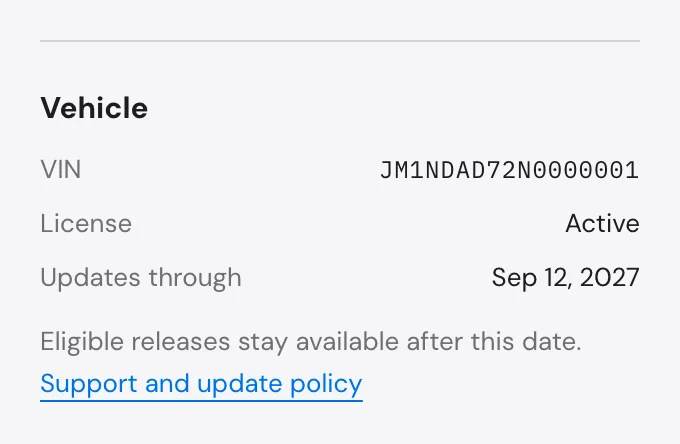
| Field | What it means |
|---|---|
| VIN | The car this license and its packages are made for. The package checks it in the car before changing anything. |
| License | Active or Inactive. An active license can download packages, get new releases, and change features. |
| Updates through | The last publication date of ScreenTune releases this license includes. |
The page heading repeats the date as Updates included through, or shows License inactive.
No VIN row means an early order placed before VINs were collected. Confirm the VIN once through Change features; release offers start after that.
Updates through
Section titled “Updates through”Your purchase includes ScreenTune releases published through one year after delivery. That last day is the Updates through date. A release’s publication date decides whether it is included, not the day you build or download it.
Eligible releases stay available after this date. A release published on or before it stays in Downloads, and you can still build it with your setup. ScreenTune keeps working after the date. There is no subscription and nothing renews.
Releases published after the date are not offered, so a newer release can exist without a ScreenTune version is available card. The 90 days of hands-on support also start at delivery. The support and update policy covers both.
An inactive license
Section titled “An inactive license”An inactive license shows This license is inactive. Contact support if you need help with it. at the top of the page. Change features, Add to your car, release offers, and downloads are not available while it is inactive.
A license becomes inactive when it ends, for example when it moves to another car. If you did not expect it, contact support with the email address on your order and the car’s VIN.
Switch between cars
Section titled “Switch between cars”If one email bought ScreenTune for more than one car, a Your Mazda menu appears at the top of the page. Each entry shows the vehicle and the last six characters of its VIN. Every request and download applies to the car shown, so check the menu before selecting Change features or Download.
Update history
Section titled “Update history”Update history, folded under the Vehicle panel, lists every package request for this car with its date and status.
| Entry | Comes from |
|---|---|
| Software update | Get ScreenTune version, Build the latest release with this setup, or a theme list sent from the Meters page |
| Feature changes | Change features or an Add button |
| Status | What it means |
|---|---|
| Building | The package is being built. |
| Sending | The package is built and is being added to your account and emailed. |
| Ready | The package was delivered and is in Downloads. |
| Closed | A newer request replaced this one, or it was closed without a package. |
Ready means the package was delivered, not that it is on the car. To see what the car is running, open Applications → Miatafy and check WHAT’S INSTALLED.