
Sign In to My ScreenTune
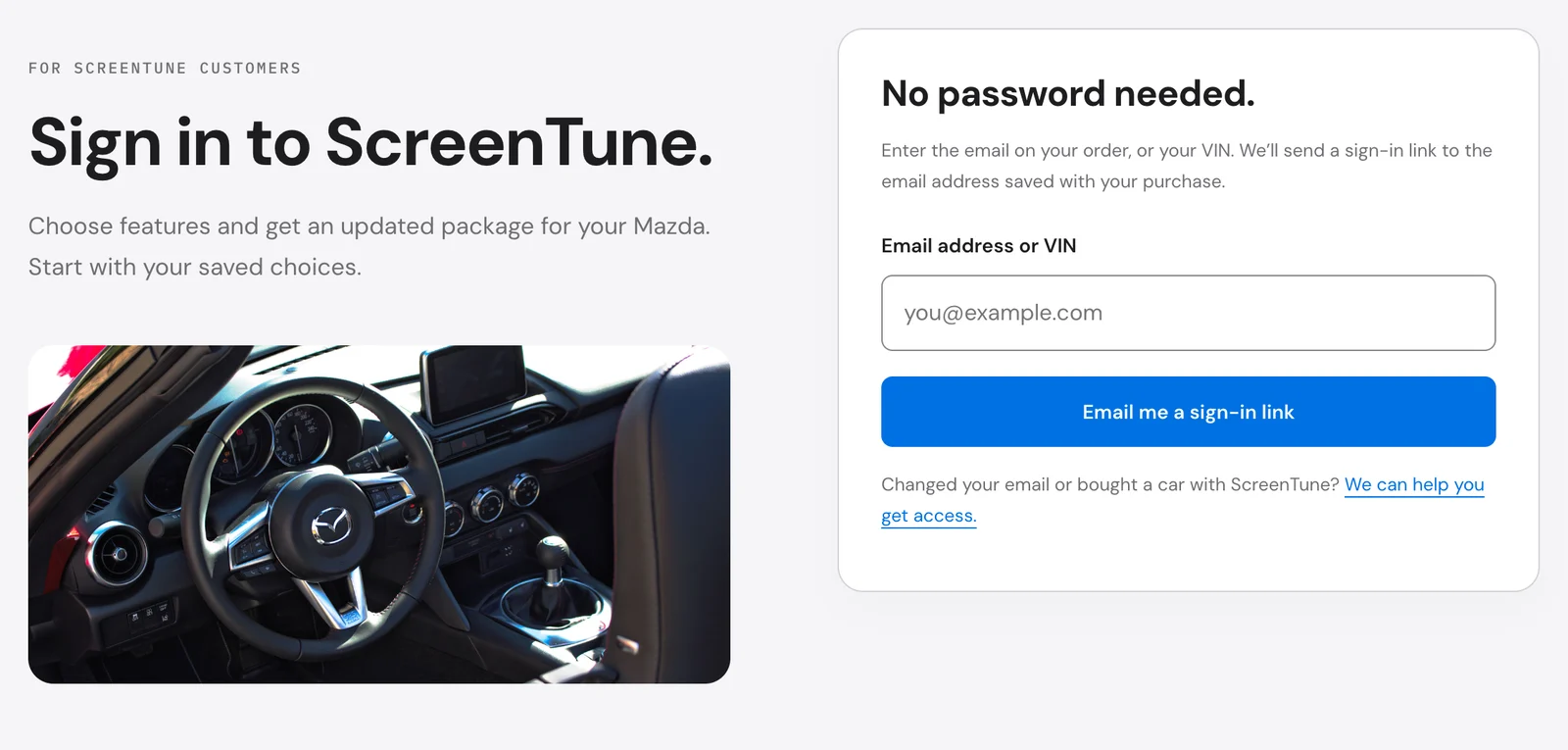
My ScreenTune has no password. You ask for a sign-in email, then open its link or type its six-digit code.
- Go to miatafy.com/login/.
- In Email address or VIN, enter the email address on your ScreenTune order, or your car’s 17-character VIN.
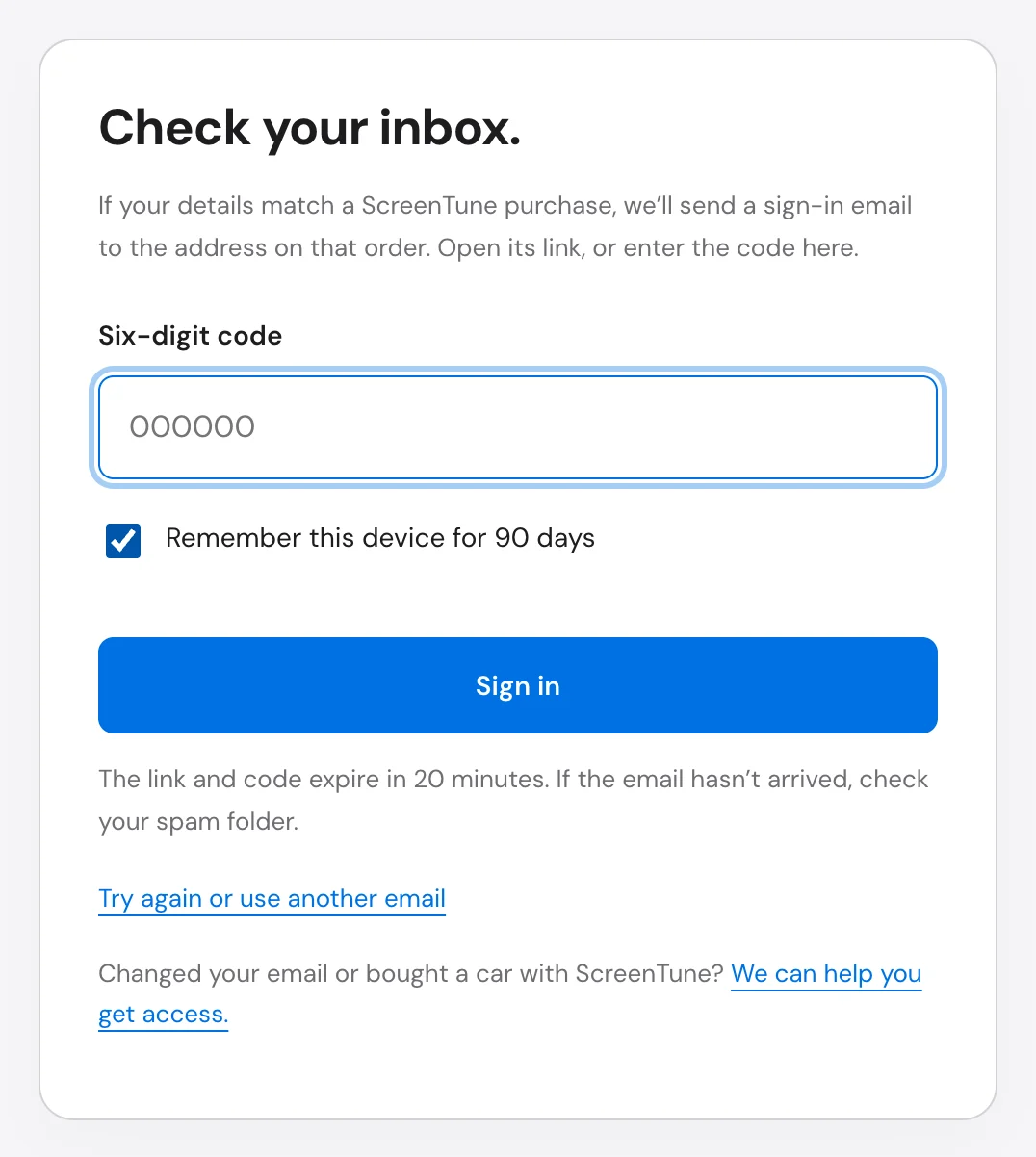
- Select Email me a sign-in link. The page changes to Check your inbox.
- Open the email titled Sign in to ScreenTune | Miatafy and do one of the following:
- Select the link in the email, then select Continue to Miatafy on the page it opens.
- Type the six-digit code into Six-digit code on the page where you asked for it, then select Sign in.
- My ScreenTune opens with your car.
The email always goes to the order address
Section titled “The email always goes to the order address”Whichever you enter, the sign-in email goes to the email address saved with your paid order. A VIN only finds the order; it never sends the email anywhere else. The page shows Check your inbox. whether or not it found a match, so a missing email can mean the details did not match an order. See no email arrived.
Use the link or the code, once
Section titled “Use the link or the code, once”Both finish the same sign-in. Each expires 20 minutes after the email is sent and works once.
- The link works in any browser. Open it on the device you want to use, then select Continue to Miatafy.
- The code works only in the browser tab where you asked for the email. Use it when the email arrives on your phone but you are signing in on a computer.
Remember this device for 90 days is checked by default, next to the code field and on the Open your ScreenTune. page the link opens. Leave it checked on your own phone or computer. Clear it on a shared computer, and the sign-in lasts one day.
Sign in from the QR code in your car
Section titled “Sign in from the QR code in your car”Open Applications → Miatafy on the Mazda Connect screen and scan its QR code with your phone. It opens My ScreenTune for that car. If you are not signed in, select Email me a login link under Sign in to ScreenTune. The email goes to the order address and the page moves to Check your inbox. Finish with the link or code.
Send a new email
Section titled “Send a new email”Select Try again or use another email on the code page, or Email me a new sign-in link on the link page. Your last entry is filled in again; correct it if needed and select Email me a sign-in link. Wait a minute between requests, and use the newest email.
No email arrived
Section titled “No email arrived”| What happened | What to do |
|---|---|
| Nothing in the inbox after a few minutes | Check spam, junk, and promotions folders for Sign in to ScreenTune | Miatafy. |
| You entered an email that may not be the one on the order | Try the email you used at checkout, or enter your VIN instead. |
| You entered a VIN and nothing arrived | The email went to the order address, which may be an old or work account. If the VIN appears on more than one owner’s order, nothing is sent; use the order email instead. |
| You no longer have the order email, or bought the car with ScreenTune installed | Support moves the license to your email. See email and ownership changes. |
| This link or code has expired, was used, or is incorrect. Request a new email. | The 20 minutes passed, the link was already used, or the code was mistyped. Retype it, or send a new email; a code stops working after five wrong tries. |
| Too many attempts. Wait a few minutes before trying again. | Wait a few minutes, then send a new email. |
| Sign-in is temporarily unavailable. Please contact support@miatafy.com. | Try again later, or contact support. |
To contact support, email support@miatafy.com or use the contact form with your order email and VIN. Replies usually arrive within 48 hours.
A car is missing after you sign in
Section titled “A car is missing after you sign in”My ScreenTune shows only the cars bought with the email you signed in with. If a car is missing, or the page says This license is not available in your account., sign in with the email used for that car’s order. The error page’s Sign in with another email button signs you out first.
Sign out
Section titled “Sign out”Select Sign out at the top of My ScreenTune. The session ends on that browser, and the next visit asks for a new sign-in email. Sign out after using a shared computer.