
Meters Dashboard Builder Reference
The dashboard builder in My ScreenTune is where you lay out a custom dashboard. To start a design, save it, and get it into the car, follow design a custom Meters dashboard. Saving a design changes nothing in the car until you install your next ScreenTune package.
Find your way around the builder
Section titled “Find your way around the builder”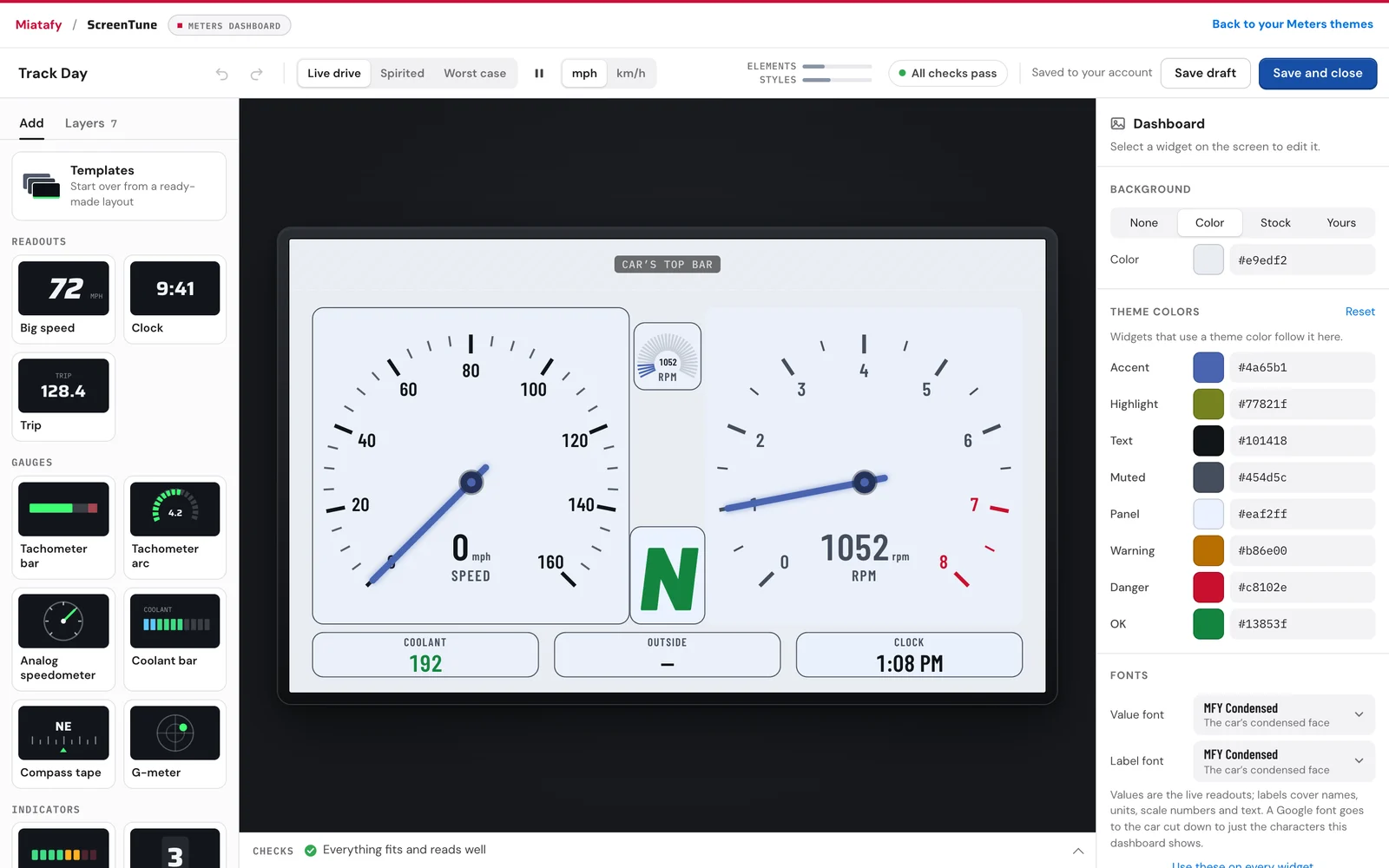
- Top bar: the dashboard’s name, preview modes, units, undo and redo, the car budget, Checks, Save draft, and Save and close.
- Add and Layers on the left: the widget library, and everything on the screen in stacking order, top first.
- The preview in the middle: the dashboard as the car draws it, running on a recorded drive.
- The inspector on the right: settings for the selected widget in Data, Display, Style, and Zones tabs. With nothing selected it shows Dashboard: background, theme colors, fonts, and units.
Add widgets for numbers, gauges, and indicators
Section titled “Add widgets for numbers, gauges, and indicators”Click a widget in Add to drop it in an open spot, or drag it where you want it. A dashboard holds up to 60 widgets.
| Widget | Shows | Examples in Add |
|---|---|---|
| Number | A reading as text, with an optional label and unit | Big speed, Clock, Trip |
| Bar | A reading as a horizontal or vertical bar, continuous or segmented | Tachometer bar, Coolant bar, Shift lights |
| Arc | A reading as a segmented ring | Tachometer arc |
| Dial | A needle gauge with ticks | Analog speedometer |
| Indicator | A discrete state: the current gear, a lamp that lights above or below a value, or a word | Gear |
| Tape | A scrolling scale, such as a compass heading tape | Compass tape |
| G-meter | A dot that moves with cornering and braking forces | G-meter |
| Text | Your own fixed text, up to 40 characters | Label |
| Shape | A rectangle, ellipse, or line used as a backing or divider | Panel |
Move, resize, and keyboard shortcuts
Section titled “Move, resize, and keyboard shortcuts”Drag a widget to move it and use its handles to resize it. It snaps to an 8 px grid, the screen center, and the edges of other widgets.
| Key | Action |
|---|---|
| Arrow keys | Nudge 1 px (with Shift, 10 px) |
| Delete | Remove the selected widget |
| ⌘D or Ctrl+D | Duplicate |
| ⌘Z or Ctrl+Z | Undo |
[ and ] | Move a widget backward or forward in the stack |
Bind a widget to a reading
Section titled “Bind a widget to a reading”Select a widget and open Data.
- Under Reading, choose what it shows. The list offers the vehicle and GPS readings Meters uses (data reference), each with its current value and how often it updates.
- Under Show as, switch the widget to another type that suits the reading, for example from a number to a bar.
- Under Refresh, slow a fast reading if it flickers: As fast as possible, or a cap such as Once a second. Readings that already update slowly have no Refresh setting.
Gauges set their scale under Display: minimum and maximum, segments, ticks, and the sweep of an arc or dial. Zones colors up to four ranges of a reading, such as green for normal coolant temperature and red past the redline. On a number, a zone recolors the value; on a bar, arc, or dial, it colors that part of the scale.
The car always uses its own unit setting, so check the design in both mph and km/h with the units toggle in the top bar. Make mph the default (or Make km/h the default) sets which one the design opens in.
Style the dashboard and each widget
Section titled “Style the dashboard and each widget”Dashboard (nothing selected) holds the settings widgets share:
- Background: None (black), Color, Stock images, or Yours, your uploaded images. Uploads are cropped to the screen and brightened for the car.
- Theme colors: accent, text, muted text, panels, warning zones, and the normal range. Widgets set to a theme color follow it. Match image picks colors from the background.
- Fonts: Value font for live readouts and Label font for labels, units, scale numbers, and text widgets. Each applies to every widget on the dashboard.
Style on a selected widget sets its own colors, text alignment, and an optional panel behind it, with fill, opacity, corner radius, and border.
The car’s two built-in fonts are free. A Google font adds a small file to the theme, which counts toward the car budget. Fonts tagged Digits vary have numbers of different widths, so a readout in that font can shift sideways as the value changes. They suit labels better than values.
Keep readings out of the top control bar
Section titled “Keep readings out of the top control bar”The top 54 px of the preview is shaded. On the car, Meters puts its own controls there, including the theme list and the layout button. Readings and text cannot overlap that strip; shapes and the background can.
Fix what Checks finds
Section titled “Fix what Checks finds”Checks under the preview reviews the design as you work. Select a row to select the widget it names.
| Checks shows | What to do |
|---|---|
| N problems to fix before this can go on the car | Fix each one. Problems are things the car cannot draw: a widget off the screen or in the top control bar, text that no longer fits, or a design over the car budget. |
| N suggestions | Optional. Text may be hard to read over the background. Fix adds a panel or a contrasting color, and Make N widgets readable fixes them all in one undoable step. |
| Everything fits and reads well | Nothing. |
The car budget in the top bar shows how much of the car’s limit for screen elements, styles, and fonts the design uses. Large or complex designs fill it sooner.
Preview the drive before saving
Section titled “Preview the drive before saving”The top bar has three preview modes:
- Live drive: a recorded drive.
- Spirited: pulls through the gears past the redline, cruises, then brakes.
- Worst case: cycles extreme, missing, and redline readings every 2 seconds, so you can see how the design handles long numbers and blank values.
Messages when a design opens
Section titled “Messages when a design opens”| Message | Meaning |
|---|---|
| Your unsaved changes are back. Save to keep them. | You left without saving last time. Save to keep the changes. |
| We turned your classic theme into a dashboard. | A custom theme made before the dashboard builder existed now opens as a dashboard. |