
My ScreenTune: Downloads, Updates, and Features
My ScreenTune is the customer portal for your ScreenTune purchase, at miatafy.com/car/. Sign in with the email address on your paid order. There is no password: each sign-in uses a link or six-digit code sent to that address.
| To do this | Go here |
|---|---|
| Sign in, or fix a missing sign-in email | Sign in to My ScreenTune |
| Download your package again, for example after losing the USB | Download your package again |
| Get a newer ScreenTune release with your current setup | Get the latest release |
| Add Meters, AA Touch, or Wireless CarPlay startup, or change other options | Add or change features |
| Choose which Meters themes are on the car and which one it starts on | Meters theme list |
| Design your own Meters dashboard | Custom dashboards |
| Check your VIN, license status, and update date | License status and update dates |
| Change your email, sell the car, or replace the CMU | Email and ownership changes |
Every change arrives as a new USB package
Section titled “Every change arrives as a new USB package”Nothing in My ScreenTune changes the car directly. A new release, a feature change, or a new Meters theme list each produces a new ScreenTune package for this car, which is also emailed to your order address. Download it, copy it to a USB drive, and run it in the car:
- For a newer release, choose UPDATE.
- For a feature or theme change, choose UPDATE, or REPAIR if the prompt shows the version you already have.
Both apply the package’s full setup. See Update ScreenTune or Repair ScreenTune.
What the home page shows
Section titled “What the home page shows”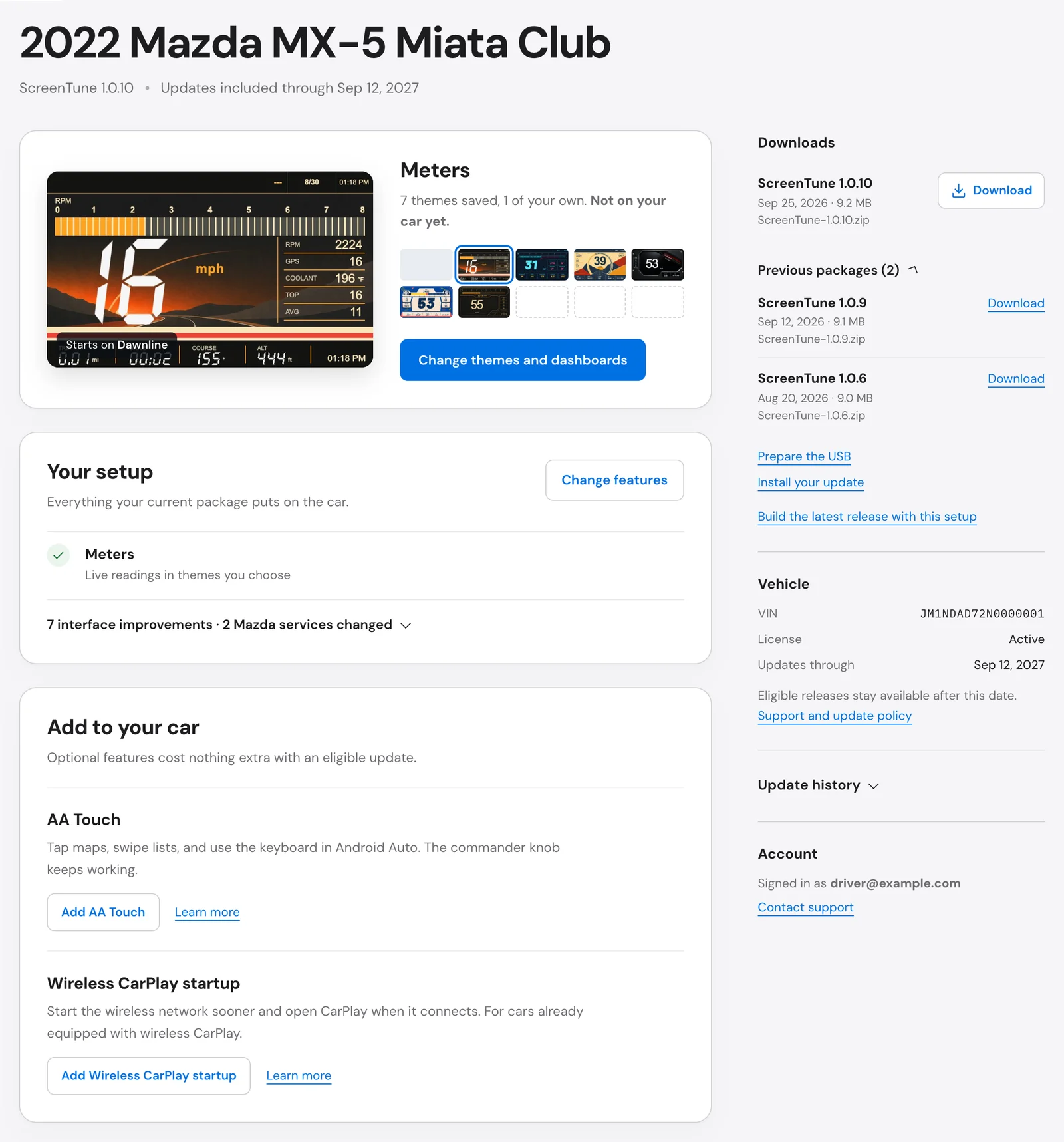
The heading names your car, the ScreenTune version on your license, and the date updates are included through. Below it, the page shows at most one thing to act on: a package being built, a package ready to download, or a newer release to build. The latest release page explains each one. With nothing to act on, the page opens on the car itself.
Your setup. The add-ons in your current package, such as Meters or AA Touch, plus a folded line counting the interface improvements and Mazda services you changed. It reflects what your package was built with, not what is installed: a package you have not installed yet is still listed. Change features opens it for editing.
Meters. When your package includes Meters, this card shows the themes in your car’s theme list and the one it starts on. Change themes and dashboards opens the Meters page. Not on your car yet. means you saved Meters changes that no package has carried yet; see send themes to the car.
Add to your car. The optional features your package does not have yet, each with an Add button, such as Add Meters, and a Learn more link. Optional features cost nothing extra with an eligible update.
Side panel. Your downloads, the Vehicle facts for this license, a folded Update history, and the email you are signed in as. Sign out is at the top of the page.
One sign-in covers every car on that email
Section titled “One sign-in covers every car on that email”Every ScreenTune license bought with your order email appears in the same account. With more than one car, switch between them in the Your Mazda menu. A car bought with a different email appears only when you sign in with that address.
If your order is still being prepared, the page shows Your order is with us. Your features and downloads appear after the first package is ready.
Check what the car is running
Section titled “Check what the car is running”My ScreenTune cannot see the car. To check what is installed, open Applications → Miatafy on the Mazda Connect screen. It shows the licensed VIN, whether it matches the car, and WHAT’S INSTALLED. Its QR code opens My ScreenTune for that car; see sign in from the QR code.
When something in My ScreenTune does not work or does not match your car, email support@miatafy.com.