
Install ScreenTune from Your USB
Your ScreenTune USB is ready to use when opening it on a computer shows jci-autoupdate and
START_HERE.html right away, with no folder to open first.
- Downloaded a ZIP? Prepare the USB first with the USB preparation guide, then come back here.
- Got a mailed USB? It arrives ready. Start at Install ScreenTune.
Before your first install, photograph the car’s current screens; see record your stock state.
Install ScreenTune
Section titled “Install ScreenTune”A normal installation takes about two minutes. Use the USB only in the car it was ordered for, and plug it directly into a media/data USB port: no hub, splitter, extension, or charge-only port.
- Start the engine or switch the ignition fully on.
- Wait for Mazda Connect to finish booting and show its normal home, Applications, or Settings screen.
- Insert the ScreenTune USB.
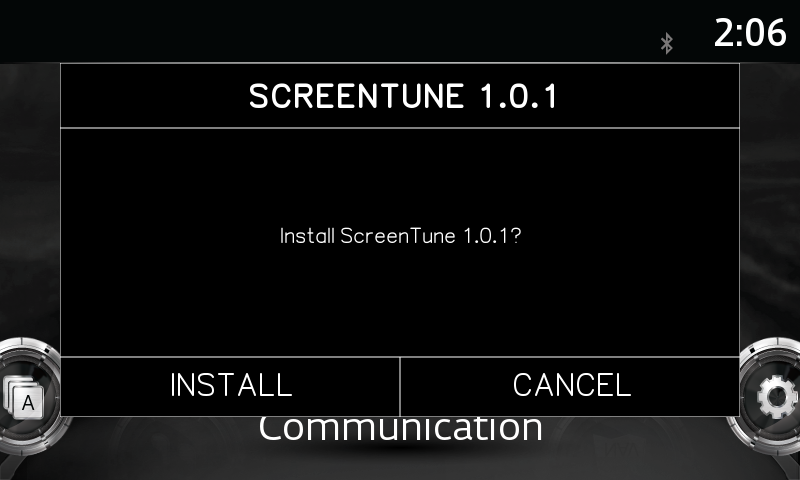
- Wait for the SCREENTUNE prompt. It appears on its own after the home screen has loaded and reads “Install ScreenTune version?”, for example “Install ScreenTune 1.0.9?”. No prompt? See No ScreenTune prompt.
- Select INSTALL. Tap the button, or turn the commander knob to move the bracketed choice and press it.
- Leave the ignition on and the USB connected. Do not press buttons, switch off the vehicle, or remove the drive while ScreenTune is working.
- Wait for Mazda Connect to restart by itself and return to its normal screen. Then remove the USB and keep it: it also updates, repairs, and removes ScreenTune on this car.
- If the prompt appears again after the restart, choose CANCEL and remove the USB.
If it goes wrong
Section titled “If it goes wrong”| What happens | Fix |
|---|---|
| No prompt appears | No ScreenTune prompt. The cause is usually the USB layout or the firmware version. |
| A message ends in “Nothing was changed.” | The VIN check or the USB stopped the install before any change. The message says why. |
| SCREENTUNE INSTALL ERROR | Press RESTART, then follow an action failed. |
| The screen keeps restarting or stays black | Keeps restarting or black screen, before you try anything else |
| A selected change is missing | A feature is missing |
ScreenTune runs on Mazda Connect v74.00.324: Settings → System → About shows 74.00.324A
in North America, or 74.00.324 with a region code elsewhere. On other firmware no prompt
appears and nothing changes. To contact support, see
get help with ScreenTune.
Check the install afterward
Section titled “Check the install afterward”Open Applications → Miatafy to see what is installed, then check each change with check your ScreenTune install. Faster startup shows on the next cold start, not on the install restart.
Later: update, repair, or remove
Section titled “Later: update, repair, or remove”Insert the ScreenTune USB for this car after Mazda Connect finishes booting. The prompt offers the actions that fit the installed version and the package on the drive.
| Task | Prompt button | Guide |
|---|---|---|
| Install a newer release | UPDATE | Update ScreenTune |
| Reapply the installed version, or add features built on it | REPAIR | Repair ScreenTune |
| Uninstall ScreenTune | REMOVE | Remove ScreenTune (go back to stock) |
| Close the prompt with no changes | CANCEL | Nothing else to do |
Common questions
Section titled “Common questions”Can I use this ScreenTune USB in another car?
Section titled “Can I use this ScreenTune USB in another car?”No. The package is licensed to one VIN. In another car it stops after you choose INSTALL with “This ScreenTune package is licensed to a different vehicle.” and changes nothing. Selling the car? See selling the car or visiting a dealer.
What if I lose or erase the USB?
Section titled “What if I lose or erase the USB?”Download the package again and prepare a new drive. Mailed-USB orders have the same download.