
Repair ScreenTune with the Same USB
REPAIR reinstalls the package version that is already in the car. It restores the first-install baseline, then applies the complete package on the USB again, so nothing is stacked on top of the old copy. Your Meters settings are kept.
When to use REPAIR
Section titled “When to use REPAIR”- A selected change is missing or stopped working. Check first with check your ScreenTune install.
- Meters is missing from Applications after one restart.
- You are installing a package with changed features built on the version already in the car. See a same-version package shows REPAIR.
- Support asks you to reapply the package.
If Mazda Connect keeps restarting, do not run REPAIR first. Follow boot loop after installing.
Run REPAIR
Section titled “Run REPAIR”Use the USB that matches the installed version. If you no longer have it, download that version again from Downloads, where older versions are under Previous packages. A newer package offers UPDATE instead.
- Start the vehicle or switch the ignition fully on, and wait for the normal Mazda Connect screen.
- Insert the ScreenTune USB directly into a media/data USB port.
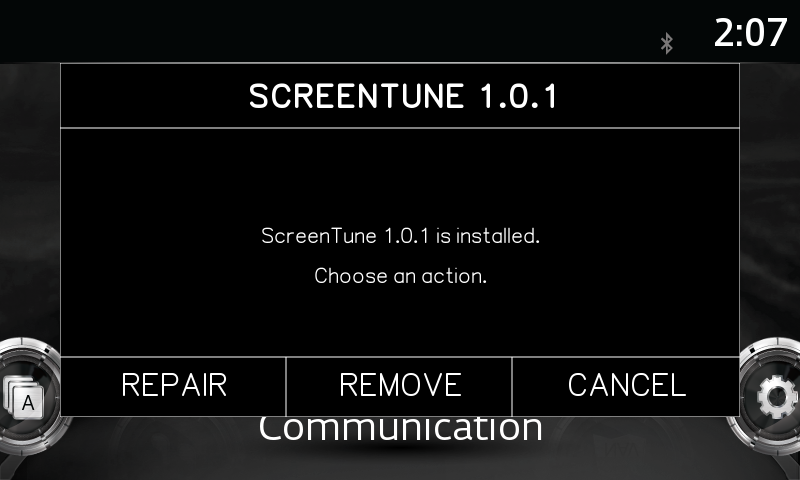
- Wait for the SCREENTUNE prompt. It reads “ScreenTune version is installed. Choose an action.”
- Select REPAIR.
- Leave the ignition on and the USB connected until Mazda Connect restarts by itself and returns to its normal screen. This takes about two minutes.
- Remove the USB and check the install.
REPAIR checks the VIN after you select it, then shows the same messages as a first install. See what the screen shows while it works.
What REPAIR keeps and replaces
Section titled “What REPAIR keeps and replaces”| Item | After REPAIR |
|---|---|
| ScreenTune changes | Reapplied from the USB package |
| Files ScreenTune manages | Restored from the first-install baseline, then changed again |
| Meters theme, layout, and reading assignments | Kept |
| First-install baseline | Unchanged |
| Firmware version | Unchanged |
If REPAIR fails
Section titled “If REPAIR fails”A failure before changes start, such as a VIN or USB problem, ends with “Nothing was changed.” and leaves the install as it was.
A failure while changes are applied rolls the car back to the first-install baseline and shows SCREENTUNE INSTALL ERROR. ScreenTune is then removed from the car; your Meters settings are kept. Press RESTART, then follow an action failed: send support the USB contents as a ZIP and wait for a reply before you try again.
If REPAIR completes but the change is still missing, see a feature is missing.