
Choose the Themes in Your Car's Meters List
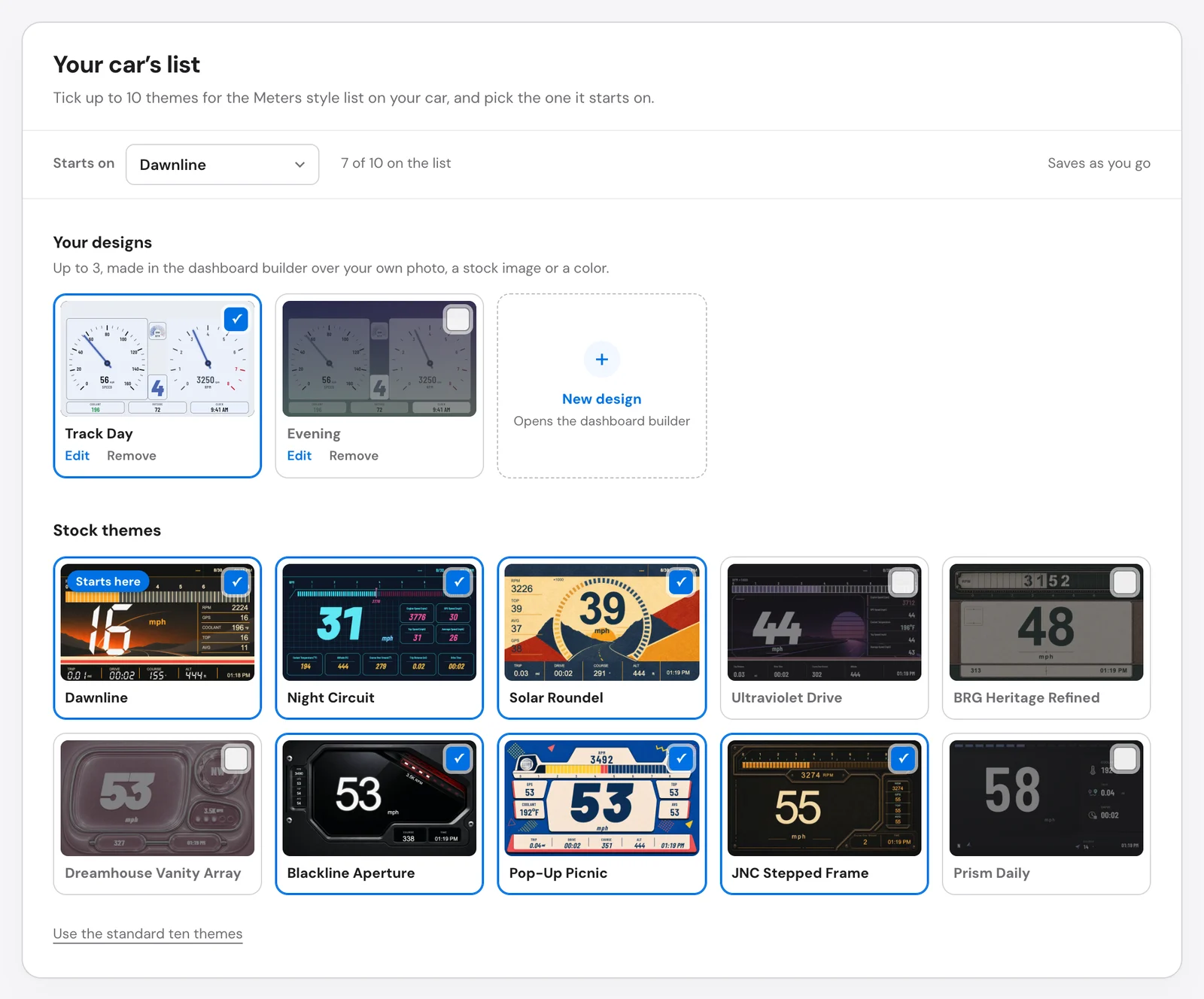
Your car’s Meters list holds up to 10 themes. You choose them in My ScreenTune: tick the themes you want and pick the one the car starts on. The page saves each change as you make it, and the car gets the new list with its next ScreenTune package (send your themes to the car).
A car that has never had a list chosen carries the ten stock themes, starting on Dawnline.
Open your Meters themes
Section titled “Open your Meters themes”- Sign in to My ScreenTune.
- On the Meters card, select Change themes and dashboards.
- The Your Meters themes page opens for that car, with Your car’s list below the banner.
The Meters card on the home page shows the current list at a glance: how many themes it holds, how many are your own, and which one it starts on.
If the page says Meters isn’t in this car’s ScreenTune, the car’s package does not include Meters. Select Add Meters, then select Miatafy Meters on the Add-ons step of the feature change that opens.
Tick up to 10 themes
Section titled “Tick up to 10 themes”The list has two groups of cards:
- Your designs: up to 3 custom dashboards you made in the dashboard builder (design a custom dashboard).
- Stock themes: the ten themes that ship with Meters.
Tick a card to put that theme on the car’s list, and untick it to take it off. The count beside the menu shows how full the list is, for example 7 of 10 on the list.
| You try to | What happens |
|---|---|
| Tick an 11th theme | Refused: The Meters style list holds 10 themes. Remove one to add another. |
| Untick the last theme | Refused: Choose at least one theme. |
The car shows the list in a fixed order: your designs first, then the stock themes in the order in the table below. The order you tick them in does not change it.
Unticking one of your designs takes it off the car’s list but keeps it in your account, ready to tick again. To delete it, see remove a design.
Pick the theme the car starts on
Section titled “Pick the theme the car starts on”Choose a theme from Starts on. The menu lists only ticked themes, and the chosen card shows Starts here.
Ticking one of your designs that the car does not have yet makes it the start theme automatically, and a note under the list says so. Change Starts on afterward if you want a different one.
Starts on applies when the car has no theme of its own to return to:
- the first time Meters is installed;
- when the theme the car was last on is no longer in the list; or
- when you tick Also reset Meters on the car to these choices for that package (details).
Otherwise Meters opens on the theme last shown in the car, as long as that theme is still in the list.
Changes save as you go
Section titled “Changes save as you go”There is no save button. The status beside the count reads Saves as you go, then Saving… and Saved after each change.
| What you see | What it means | What to do |
|---|---|---|
| Saved | The change is on your account. | Nothing. |
| Not saved | The page could not reach Miatafy. | Check the connection, then select Try again. |
| A message under the list, and the change undone | The choice was refused. The message says why. | Adjust the list and try again. |
A saved list is not on the car yet. The banner at the top of the page shows where the car stands:

| Banner | Meaning |
|---|---|
| Your car has these themes | The car’s last package matches this list. |
| These changes aren’t on your car yet | The list changed after the car’s last package. Get an update requests a new one. |
| Your update in progress will include these | A package is being prepared and will carry this list. See its progress opens My ScreenTune. |
Go back to the standard ten
Section titled “Go back to the standard ten”Use the standard ten themes appears under the list once it differs from the default. Confirm with Use the standard ten, or select Keep my list to cancel.
The car’s list goes back to the ten stock themes, starting on Dawnline. Your designs stay saved, unticked.
The ten stock themes
Section titled “The ten stock themes”| Theme | Look |
|---|---|
| Dawnline | Warm colors and a large central speedometer. |
| Night Circuit | Bright digital gauges on a dark background. |
| Solar Roundel | A round tachometer against a sunrise road. |
| Ultraviolet Drive | Purple night-road artwork and a horizontal tachometer. |
| BRG Heritage Refined | Classic dials in British Racing Green and cream. |
| Dreamhouse Vanity Array | Pink panels and RPM indicator lights. |
| Blackline Aperture | Dark gray instruments with a red tachometer. |
| Pop-Up Picnic | Pop-up headlights and a yellow tachometer. |
| JNC Stepped Frame | Vintage digital instruments in black and amber. |
| Prism Daily | A simple dark layout with a compass pointer. |
The Meters product page shows each one.
An inactive license can’t change the list
Section titled “An inactive license can’t change the list”If the license is inactive, the page shows the list with the ticks, Starts on, and the design tools turned off. Write to support@miatafy.com with the email address used for the order.