
Install Mazda Connect Firmware by USB
Plan on about an hour with the car. The write itself takes 15–25 minutes for a one-file update, and some owners report closer to 40. Very old units on the staged path need 30–60 minutes.
Before you start: five checks
Section titled “Before you start: five checks”Do these at home or in the driveway, before you plug anything in.
1. Record your version and region
Section titled “1. Record your version and region”Open Settings → System → About → Version Information and photograph the screen. If that menu won’t open, use diagnostic code 53 instead.
Write down three things:
- OS version, e.g.
59.00.441 - Failsafe version
- Region code, e.g.
NA N
Firmware is region-locked. Install only the package for your region. A mismatched flash can break radio bands, navigation, or recovery.
| Region | Target after the update |
|---|---|
| North America | 74.00.324A + NA N |
| Europe | 74.00.324 + EU N |
| ADR / 4A | 74.00.324 + 4A N |
| Japan | 74.00.324 + JP M |
EU and 4A screens usually drop the trailing A, but the package is still 324A. Japanese units on 74.00.324 JP M exist, but we haven’t confirmed a Japanese package filename. See firmware region codes.
Old units. If your OS version is below 55.00.650 (North America) or 56.00.100 (Europe/ADR), read staged updates before going further.
2. Back up anything you want to keep
Section titled “2. Back up anything you want to keep”The update rewrites the whole system. Mazda’s 2022 service bulletin (MC-10226834-0001) says it erases unauthorized customizations and can’t be rolled back. Expect to lose:
- Installed tweaks and Miatafy packages
- Bluetooth pairings
- Radio presets
- Navigation favorites
- Cached contacts and personal settings
See backup and recovery. Don’t use factory reset to clean up old tweaks first. It doesn’t rewrite the system and can leave modified files half-removed (why).
3. Prepare the USB drive
Section titled “3. Prepare the USB drive”Drive problems cause most failed updates.
- Size: 4–16 GB, USB 2.0 if you have one
- Format: FAT32. Larger sticks ship as exFAT, which the CMU can’t read.
- Contents: the one
.upfile, in the root folder, with its original name. Nothing else.
On a Mac, strip the hidden files macOS adds:
# Run against the mounted USB drivedot_clean /Volumes/YOUR_USB_DRIVEfind /Volumes/YOUR_USB_DRIVE -name '._*' -deletefind /Volumes/YOUR_USB_DRIVE -name '.DS_Store' -deleteFormatting steps and known-good drives: USB requirements.
4. Plan to keep power on
Section titled “4. Plan to keep power on”ACC turns itself off after about 25 minutes. Losing power mid-write can leave the CMU unable to boot. Pick one:
- Engine running, outdoors
- Battery maintainer connected, ignition in ACC
- ACC only, if the battery is known healthy. Stay in the car with accessories off, and press and release the brake (automatic) or clutch (manual) every few minutes to reset the timer.
5. Clear the ports
Section titled “5. Clear the ports”- Remove the navigation SD card.
- Unplug every other USB device, including phone cables.
Installing an OEM CarPlay retrofit? Update the firmware before you fit the new USB hub. Mazda’s retrofit instructions warn that the new hub can stop an older CMU from reading update media.
Not sure about any of the above? A dealer can identify the right package from your VIN and keep the car on stable power. Ask for a Mazda Connect CMU firmware update and have them write the final version and region on the repair order.
Install: clear codes, restart, then enter 99
Section titled “Install: clear codes, restart, then enter 99”The update starts from the hidden diagnostic menu, which is a number pad, not a labeled menu. To open it, hold Volume/Mute + Music + Favorites/Star together for 3–5 seconds.
- Turn the ignition to ACC using your power plan from step 4. Wait for the home screen.
- Open the diagnostic menu.
- Clear trouble codes. Enter
3, press Enter, then Clear. Enter2, press Enter, then Clear, then Exit. - Restart the CMU. Hold Nav + Back + Volume/Mute for about 10 seconds, or switch the car off, walk away, and give it a few minutes to shut down.
- Back in ACC, wait for the home screen, then insert the USB drive. A recognition message flashes briefly. If it doesn’t, try the other USB port.
- Open the diagnostic menu again. Enter
99, press Enter, then Search. - Select Update Package (or Reinstallation Package on
70.00.110and older), then start the update. - Keep your hands off until it finishes. Don’t remove the drive, switch off the car, or press buttons.
Why clear codes first. Mazda’s service bulletin 09-024/16 clears stored trouble codes with 3 and 2 before running 99. Owners report the update refusing to start until the codes were cleared, and restarting before 99. Clearing erases the stored codes, so photograph them first if you’re chasing a fault.
| Code | What it does |
|---|---|
3 | Shows stored trouble codes. Clear wipes them. |
2 | Clears trouble codes. |
53 | Shows the firmware version and region. |
99 | Searches the USB drive for an update. |
Full code list: diagnostic menu.
What the screen does while it works
Section titled “What the screen does while it works”All of this is normal:
- A progress screen that doesn’t move for long stretches
- A fully black screen during reboots
- The Mazda logo more than once
- No audio, Bluetooth, or camera until it finishes
A black screen or a reboot doesn’t mean it’s done. Wait for the success message or a normal start to the home screen.
Confirm the new version before reinstalling anything
Section titled “Confirm the new version before reinstalling anything”- Remove the USB drive.
- Restart the car.
- Open Settings → System → About (or diagnostic code
53). - Check the OS version and region against the target table, e.g.
74.00.324A+NA N.
Old failsafe version. The failsafe number usually doesn’t change. One-file updates since 70.00.335 don’t include a failsafe package, so an old failsafe version next to the new OS version is normal.
Once the version checks out, re-pair your phone and set your presets again.
If it fails, change one thing and retry once
Section titled “If it fails, change one thing and retry once”Signs of a failed update:
- The screen shows
FAILSAFE - The Mazda logo loops
- It returns to the update prompt
99→ Search never finds the drive
To retry:
- Remove the USB drive and turn the car off. Wait at least two minutes after the screen goes fully black.
- Prepare a different known-good drive with only the verified, region-correct file.
- Check that the SD card and all other USB devices are still out.
- Turn on ACC and insert the new drive. If the update doesn’t start on its own, run
99→ Search from the diagnostic menu. - Leave it alone until it finishes.
Stop if it fails twice. If the same step fails twice with a verified drive and file, or the CMU never reads USB, don’t keep trying other packages. Go to firmware recovery or a dealer.
SD card boot loops. A boot loop that stops when you remove the navigation SD card means the card is failing, not the firmware. Replace the card.
Staged updates for the oldest units
Section titled “Staged updates for the oldest units”Before 70.00.335, updates shipped as two files: a fail-safe package and a reinstall. Mazda dropped the separate fail-safe package at 70.00.335 (Mazda CMU update procedure), so very old units take an extra step. The thresholds come from the Mazdas247 firmware guide:
| Starting OS version (North America) | Path |
|---|---|
55.00.650 or newer | Flash 74.00.324A directly. Owners confirm direct jumps from 59.00.546 and 59.00.65A. |
Above 29.00.000 through 55.00.600 | Install two-file 70.00.100A first, then 74.00.324A. |
29.00.000 or older | Use a dealer. Mazda refers these units to a separate procedure (Service Information R036/18) that we don’t cover. |
Europe and ADR units flash directly from 56.00.100 or newer.
For the North American staged path:
- Put both
70.00.100Afiles in the root of a FAT32 drive. - Install the fail-safe package, then the reinstall package. Don’t remove the drive between them.
- Confirm the CMU boots and reports v70.
- Erase the drive and copy only
cmu150_NA_74.00.324A_update.up. - Run the normal install steps.
Never put the v70 and v74 packages on the same drive, and never mix regions.
The thresholds are there to avoid bricks. They aren’t enforced by the software. We found no case of a CMU rejecting a newer package because the starting version was too old, and the guide’s September 2025 revision says the intermediate step is unnecessary in roughly 95% of cases. Flashing it when you don’t need it adds risk of its own.
A same-version reinstall cleans off old tweaks
Section titled “A same-version reinstall cleans off old tweaks”Installing the same version and region you already have rewrites the system back to stock. Use it to:
- Remove unknown AIO or manual modifications from a used car
- Clean up a failed tweak install
- Return to a known stock baseline before dealer service
The same file, region, and USB rules apply. A reinstall still wipes tweaks, pairings, presets, and settings.
Downgrading from 74.x is blocked
Section titled “Downgrading from 74.x is blocked”Mazda says the latest software can’t be rolled back, and from 74.00.311 onward that’s enforced. Community downgrade methods stop working on 74.x. The only reported path is reprogramming the flash chip on a bench, with real brick risk.
Downgrades between 59.00.502 and v70 have worked in the past, but they’re version-specific. Before downgrading for tweak compatibility, check whether a current method exists for the version you have.
Maps, Gracenote, and factory reset don’t change your firmware
Section titled “Maps, Gracenote, and factory reset don’t change your firmware”| Path | What it actually does |
|---|---|
| Navigation map update | Updates SD-card map data, not CMU firmware |
| Gracenote update | Updates media metadata, not the OS |
| Factory reset | Clears settings; does not rewrite the system |
| OTA update | Gen 6 CMU firmware is not delivered over the air |
| Cross-region firmware | Not a shortcut; can break radio, navigation, or recovery |
North American owners can download and verify the files from Mazda. Other regions need a package from their regional Mazda service channel.
Watch a full update before starting
Section titled “Watch a full update before starting”These owner walkthroughs show the same one-file process, including the code entry. Follow the region, power, and USB rules above when a video skips a detail.
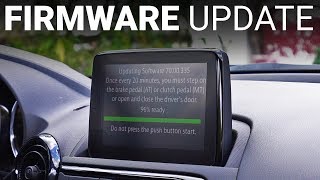 18:10 How To Update Mazda Connect Firmware (70.00.335C Echo Fix Firmware) Watch on YouTube ↗
  8:31 A Quick Guide On Updating Your Mazda Connect Software To The Latest And Final Version: 74.00.324A Watch on YouTube ↗
 Counts are Reddit link mentions; see how we count.
References
Section titled “References”| Resource | Link |
|---|---|
| Mazda Connect support portal | connect.mazda.com |
| Mazda Connect CMU Software Update Procedure (fail-safe vs. reinstall vs. update by current version) | Update procedure PDF |
| Mazda/NHTSA service bulletin 09-024/16 (diagnostic menu, DTC clear, code 99) | SB-10085418-6903 |
| Mazda/NHTSA 2022 CMU software TSB | MC-10226834-0001 |
| Mazda/NHTSA CarPlay retrofit instructions | MC-10144323-9999 |
| Mazdas247 firmware update guide | Mazdas247 thread |
| Community firmware changelog aggregation | drone540/mazda-firmware-changelogs |
| Mazdas247 v74.00.331 discussion | Mazdas247 thread |
| Infotainment class action settlement | mazdainfotainmentsettlement.com |