
Design a Custom Meters Dashboard
Saving a design changes nothing in the car. It reaches the car with your next package (send your themes to the car).
The dashboard builder in My ScreenTune lets you design up to 3 custom dashboards. Each one is an 800 × 480 screen with a background (your photo, a stock image, or a color) and the gauges and readouts you place on it. A saved design appears under Your designs on your Meters themes page, where you tick it onto the car’s list like any stock theme.
Open the builder
Section titled “Open the builder”- Sign in to My ScreenTune and select Change themes and dashboards on the Meters card.
- Under Your designs, select New design, or Edit on a design you already have.
New design disappears once you have 3 designs. Remove one to start another.
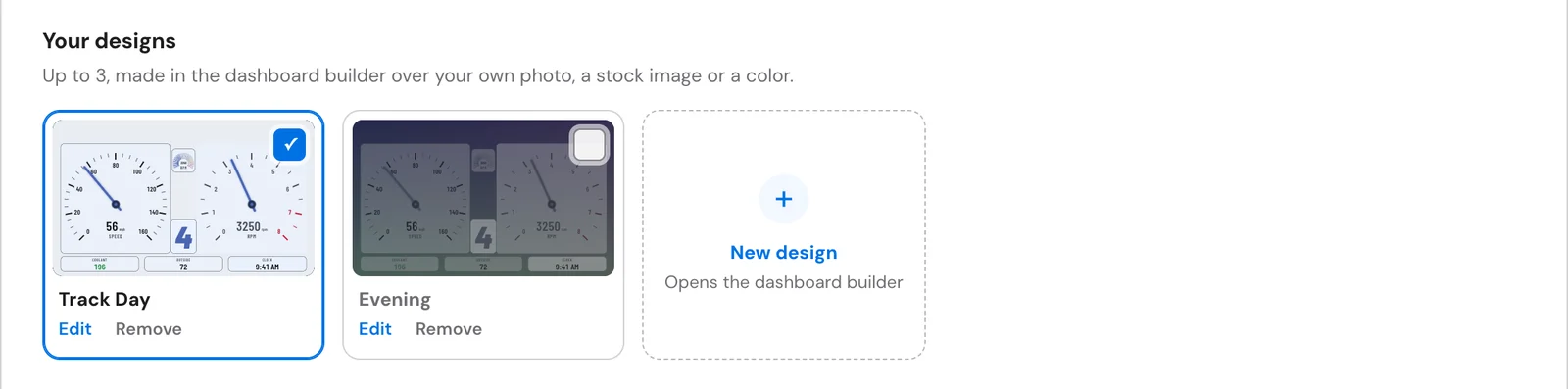
Designing needs a computer or tablet. On a phone, the tile reads Design on a computer or tablet and Edit becomes View, which shows the preview and an On this dashboard list of its readouts.
Pick a starting point
Section titled “Pick a starting point”An empty design opens Start your dashboard. Everything you start from stays editable.
| Choice | What you get |
|---|---|
| Start from your wallpaper | Upload a PNG, JPEG, or WebP up to 12 MB and frame it. The builder suggests three layouts that keep readings clear of the picture, or Just use the wallpaper and start blank. |
| Start from a template | Ready-made layouts: Minimal, Track Day, Commute, Road Trip, Analog, Showcase, Diagnostics, and versions of the Night Circuit and Prism Daily stock themes. |
| Start blank | An empty screen. Add widgets one by one. |
Templates at the top of the Add panel brings the templates back later. Choosing one replaces the current design, and undo brings it back.
Build the layout
Section titled “Build the layout”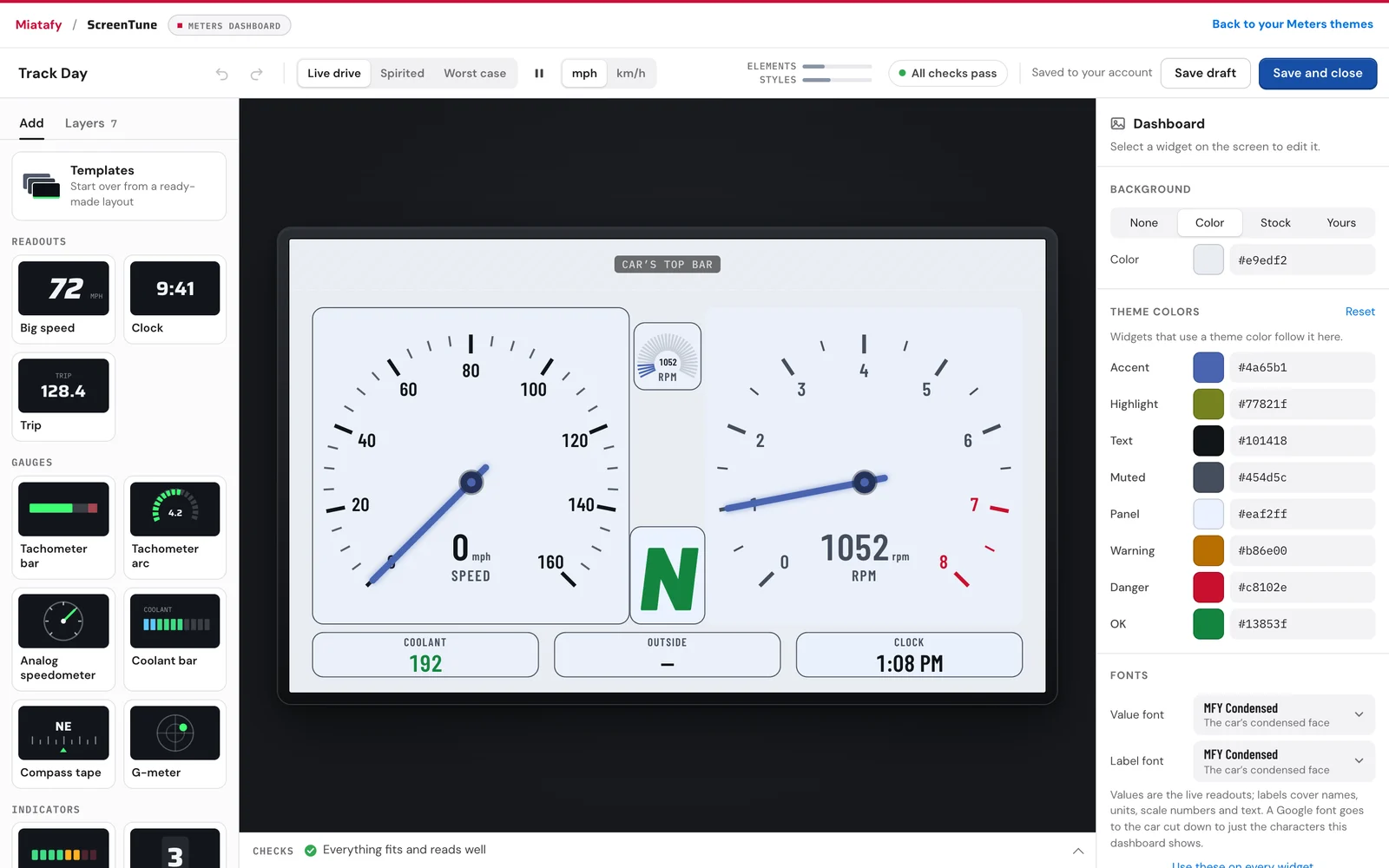
- Add widgets. Click one in Add on the left, or drag it onto the preview. A dashboard holds up to 60.
- Choose what each one shows. Select it and pick a Reading on the Data tab (data reference).
- Style it. With nothing selected, Dashboard sets the background, theme colors, and fonts. Style sets a selected widget’s own look.
- Fix what Checks finds. Problems must be fixed before the design can go on the car; suggestions are optional. Keep readings out of the shaded top strip, where Meters puts its own controls.
- Preview it. Switch the units toggle to check mph and km/h, and try the Worst case preview mode.
The dashboard builder reference covers every widget, keyboard shortcut, setting, preview mode, and Checks message.
Save the design and put it on the car
Section titled “Save the design and put it on the car”- Select Save and close. You return to your Meters themes with the design ticked onto the car’s list. A design the car does not have yet also becomes the theme the car starts on. (Save draft saves and keeps the builder open.)
- If the list already holds 10 themes, untick one to make room.
- Request a new package and install it: choose UPDATE, or REPAIR if the prompt shows the version you already have (send your themes to the car).
If you leave without saving, the builder brings your unsaved changes back the next time you open the design.
Remove a design you no longer want
Section titled “Remove a design you no longer want”On your Meters themes page, select Remove on the design and confirm with Remove design. Keep it cancels.
Removing deletes the design from your account and frees its slot. If the car already has it, the car keeps it until its next package. To take a design off the car but keep it for later, untick it instead (theme list).
Common questions
Section titled “Common questions”Can a dashboard replace the factory instrument cluster?
Section titled “Can a dashboard replace the factory instrument cluster?”No. Like every Meters theme, a custom dashboard is a supplemental display on the center screen. Keep the factory cluster and warning lamps as your authoritative instruments.