
Get the Latest ScreenTune Release
When a newer ScreenTune release is ready for your car, My ScreenTune shows ScreenTune version is available at the top of the page, with the version you have now. One button builds it with your current setup.
- Sign in to My ScreenTune and choose the car in Your Mazda if you have more than one.
- Optional: read What’s new in version, which opens the release notes on the changelog.
- Select Get ScreenTune version, for example Get ScreenTune 1.0.10. The build starts right away.
- Wait for ScreenTune version is ready, usually a few minutes. You can close the page; the package is emailed to your order address too.
- Select Download package, prepare the USB, and install it in the car with UPDATE. See Update ScreenTune.

The new release keeps your setup
Section titled “The new release keeps your setup”The card says The new release keeps your setup exactly as it is. The package carries the same features, add-ons, Mazda service choices, and saved Meters theme list as your current one, on the new release’s software. Your in-car Meters settings (theme, layout, and reading assignments) carry over through UPDATE.
To add Meters or another option at the same time, use Change features instead. It also builds the newest release your license covers.
Follow the build
Section titled “Follow the build”Every package request, whether a new release, a feature change, or a Meters theme list, shows the same progress at the top of My ScreenTune.
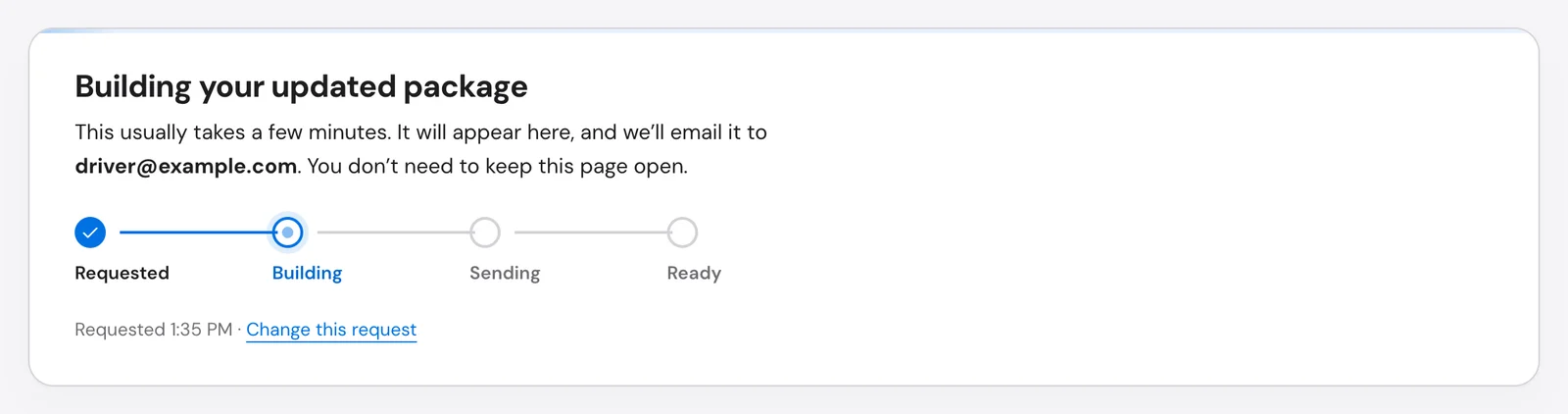
| Step | What is happening |
|---|---|
| Requested | Your request is in. |
| Building | A package is being built and checked for your VIN and setup. |
| Sending | The package is finished and is being added to your account and emailed. |
| Ready | The package is in Downloads and in your inbox. |
While it builds, the card reads Building your updated package. You don’t need to keep the page open; if it stays open, it updates by itself. The Downloads panel still shows your previous package until the new one is ready.
Change this request opens your setup for editing. Submitting a change replaces the request being built, and only the newest request becomes a package. The replaced one shows as Closed in Update history.
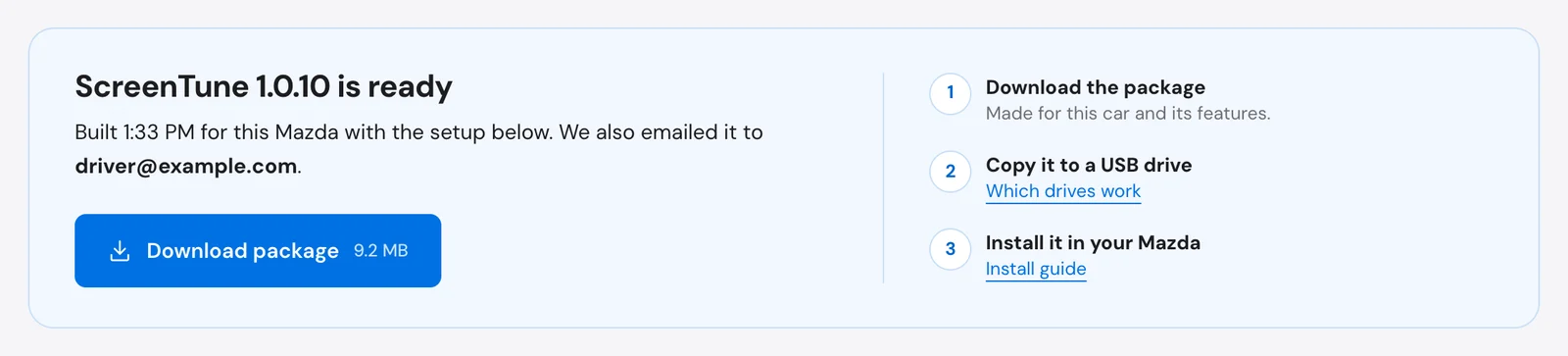
When it finishes, ScreenTune version is ready shows when it was built, the email it was sent to, and a Download package button with the file size. The card stays at the top for seven days; after that, the package is still in Downloads.
Taking longer than usual
Section titled “Taking longer than usual”After about 20 minutes, the card changes to Your package is taking longer than usual. You do not need to request it again: it still arrives by email and appears on the page. If you need it sooner, contact support.
When no release is offered
Section titled “When no release is offered”A newer release is offered only when all of these are true:
- it was published on or before your Updates through date;
- the license is active;
- you already have a package in Downloads, older than the new release; and
- the license has a VIN on file. Orders placed before VINs were collected confirm it once through Change features.
Build the latest release with this setup
Section titled “Build the latest release with this setup”When no release card or build is showing, the Downloads panel has a Build the latest release with this setup link. It asks Build the latest release with your features?; select Build latest release to build the newest release your license covers, with your current setup. Use it when support asks you to rebuild your package.
If that release is the version already installed, the car offers REPAIR instead of UPDATE. See Repair ScreenTune.
Messages that stop a request
Section titled “Messages that stop a request”| Message | What to do |
|---|---|
| This license is not active. Contact support for help. | See an inactive license. |
| Your configuration changed in another tab. Reopen it to review the latest choices. | Reload My ScreenTune, then try again. |