
Get Started with Miatafy Home on Mazda Connect
Miatafy Home replaces the factory Mazda Connect Home screen with one you design: a ready-made theme or your own layout, your shortcuts, and your artwork. It is included with every ScreenTune license at no extra charge.
You design Home online in My ScreenTune, and you can keep as many designs as you like. The car holds one of them at a time, and gets it when you install a ScreenTune USB package that carries it.
Open the editor from My ScreenTune
Section titled “Open the editor from My ScreenTune”- Sign in to My ScreenTune with the email or VIN on your purchase.
- Choose the car you want to change.
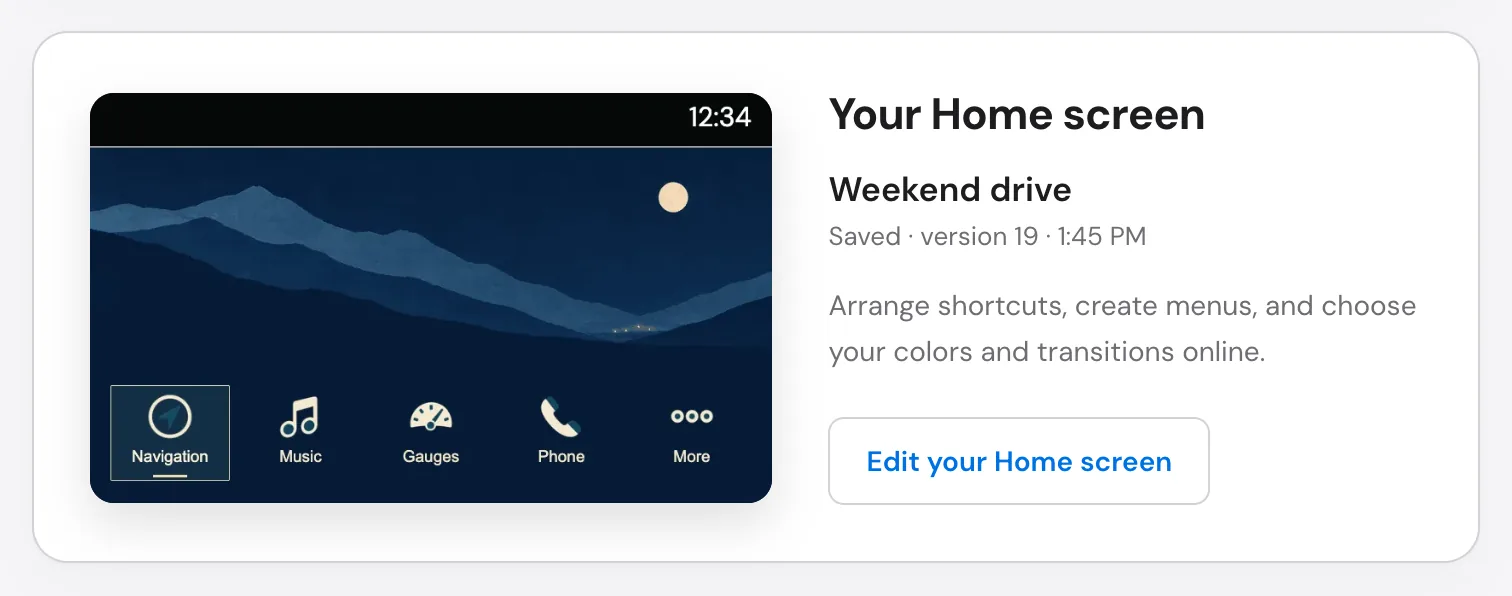
- On the Your Home screen card, select Design your Home screen, or My Home designs once you have a design. Both open My Home designs.
- Select New design, or Edit on a design you saved.
My Home designs (/car/home/) shows your car’s Home and your library: your designs, your
remixes, and the community themes you used. The editor itself is
at /car/home/edit/.
Designing is free with an email. Without ScreenTune, start from Design a Home screen or the community gallery. Putting a design on a car, and publishing it to the gallery, needs ScreenTune.
A saved design opens as you left it. A new design, named My Home screen, starts with the Mazda Classic look, the factory-style starting point. Its Home holds Applications, Music, Meters, Settings, and More, with More in the far-right slot; Phone and Navigation are in More.
Pick a built-in theme
Section titled “Pick a built-in theme”Select Themes next to the design name. The Choose a theme panel groups designs into Mazda-style round buttons, panel layouts, illustrated scenes, and blank styles. The theme list shows every theme and what each one lets you change.
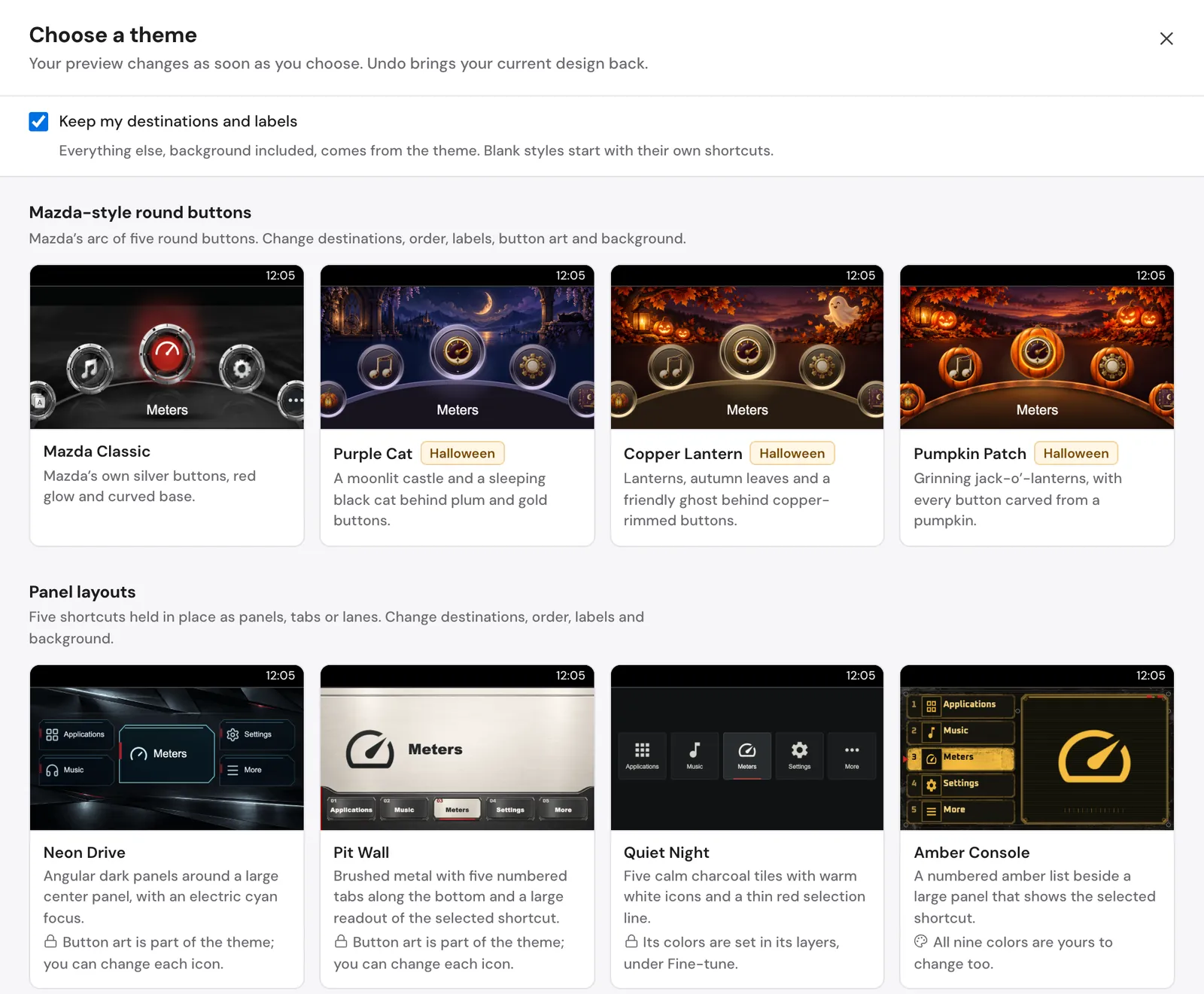
Choosing a theme replaces your design with that theme, including its background, and keeps your design’s name. Leave Keep my destinations and labels checked to carry your shortcuts’ destinations, labels, and order into a round-button, panel, or scene theme. Blank styles start with their own shortcuts. Choosing a theme changes only the browser preview, and Undo brings your previous design back.
Change shortcuts and the background
Section titled “Change shortcuts and the background”Select a shortcut in the list or the preview. Label renames it and Opens sets its destination. The up and down arrows beside it in the shortcut list change its order. Under Background, choose artwork from the library or upload a photo.
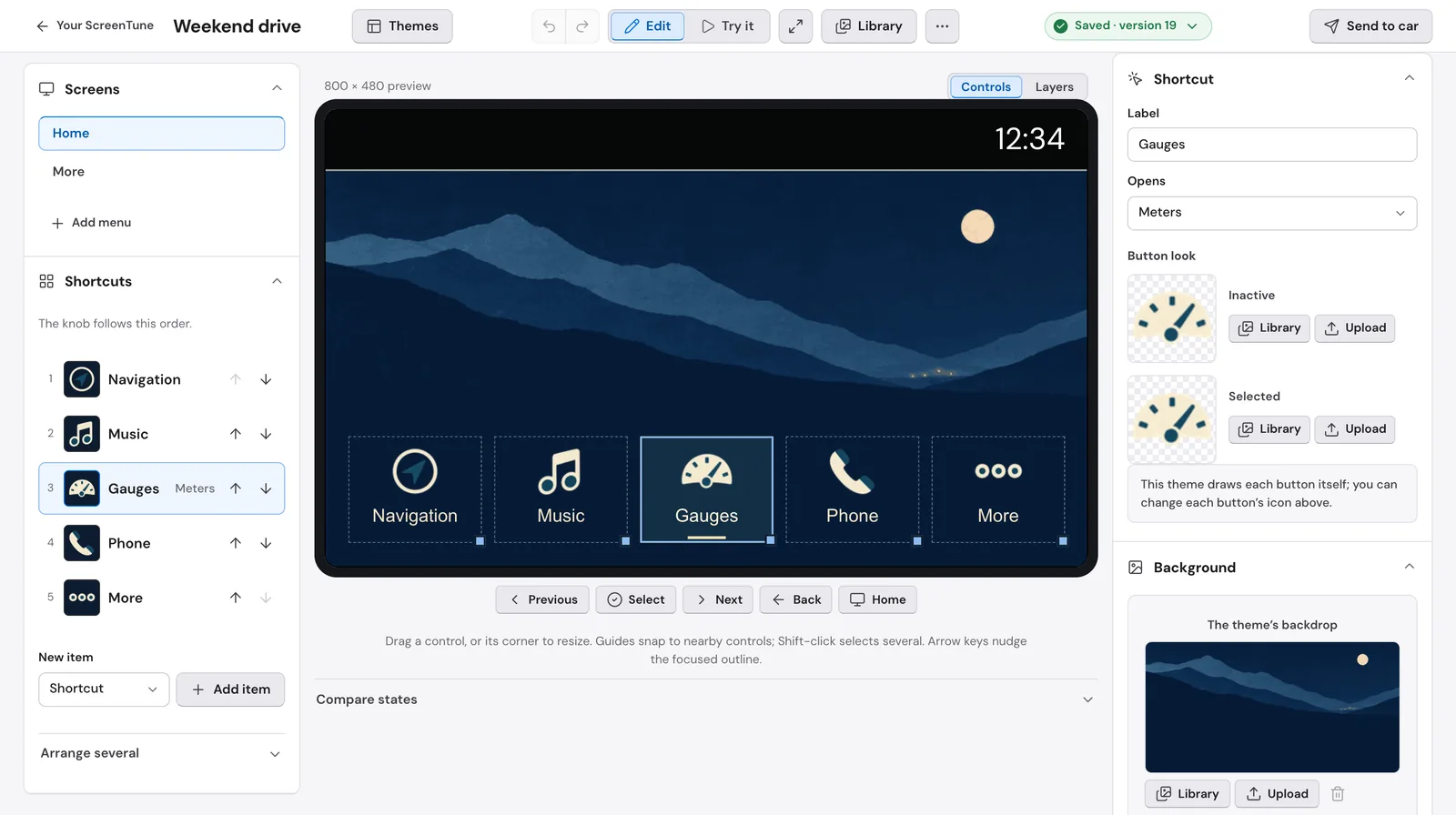
Ready-made themes may fix button positions, artwork, or colors, and the editor notes each theme’s limits. Fine-tune holds extra layout and layer controls that you do not need for a theme and new shortcuts. Themes and shortcuts covers the rest of the controls.
Check the knob order in Try it
Section titled “Check the knob order in Try it”Select Try it and use the preview’s Previous, Next, Select, Back, and Home controls, which stand in for the commander knob. Check that you can reach the shortcuts and menus you need, then return to Edit.
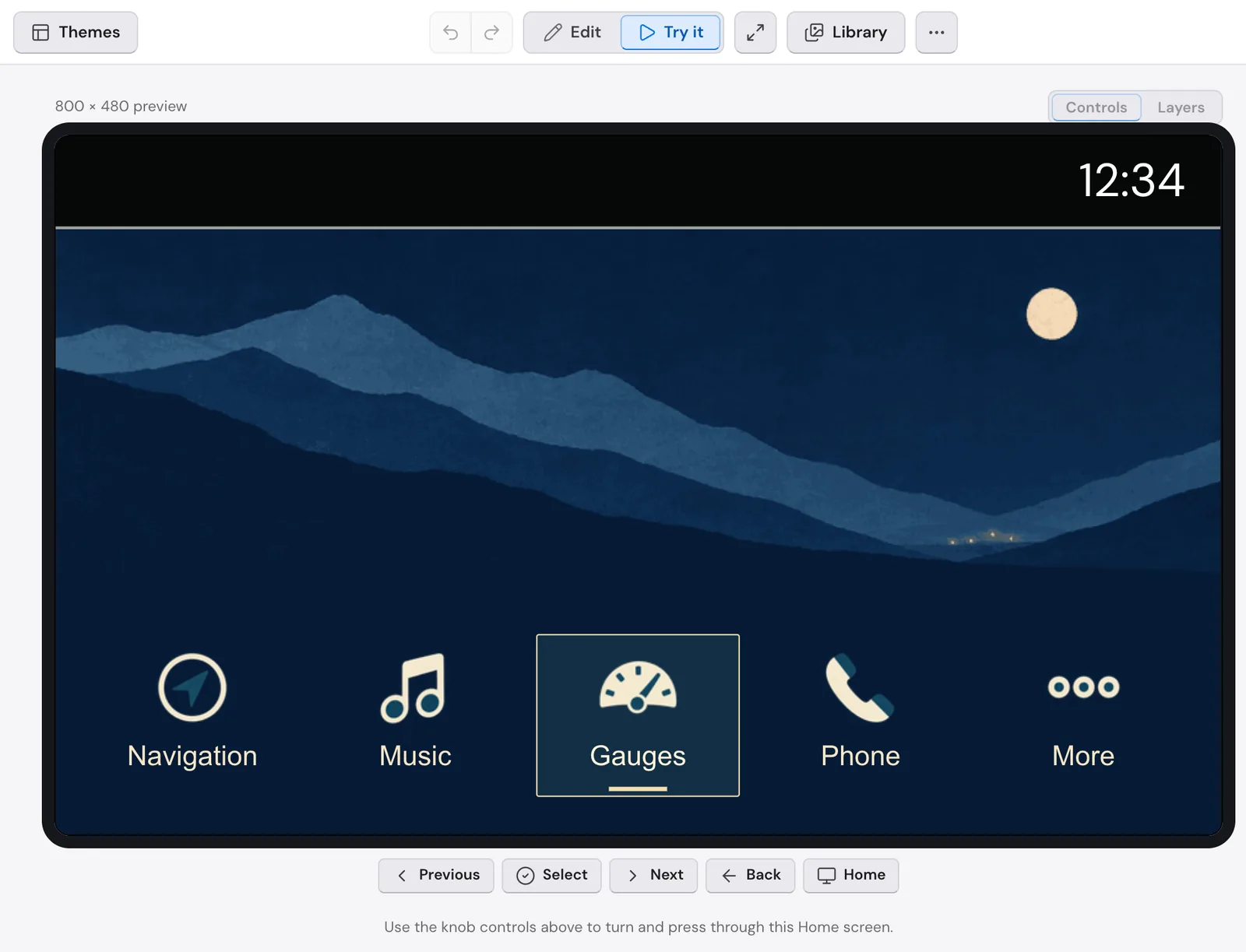
Enlarge preview gives a larger view. The preview approximates Mazda’s animation; it is not a recording from the car.
Save online, then send it to the car
Section titled “Save online, then send it to the car”Name the design and select Save. Saved · version … confirms it is stored online. Saving does not change the car.
Send to car makes this design your car’s Home and requests a ScreenTune USB package with the saved version. Install that package in the car to see your design. Save and send your Home screen walks through both steps.
Your design stays through updates and REPAIR
Section titled “Your design stays through updates and REPAIR”Every ScreenTune package for the car carries the Home version you last sent, so an update or REPAIR reinstalls it. Edits you saved but did not send stay online until you send them.
To go back to Mazda’s own Home screen, use More → Restore factory Home… and install the package it requests. See restore factory Home.
Start from a community theme
Section titled “Start from a community theme”The community gallery holds Home screens other owners published. Use on my car makes one your car’s Home as it is, and Remix copies it into your library to change in the editor. See community Home themes.