
Save and Send Your Home Screen
Save stores your design online. Send to car makes that design your car’s Home and requests a ScreenTune USB package with its saved version. The car changes only after you install the package.
Your library can hold any number of Home designs, remixes, and community themes. The car holds one: the design you chose last with Send to car or Use on my car.
Save your design
Section titled “Save your design”- In My ScreenTune, open My Home designs from the Your Home screen card, then select Edit on the design, or New design.
- Finish your changes and check the shortcuts in Try it.
- Give the design a name, then select Save.
- Wait for Saved · version …. Note the version you want to send.
The save-state button says where the design is: in a browser recovery copy, saved online, or selected for a requested USB package. A browser draft is not an online save. See drafts and saved versions.
Request a USB package
Section titled “Request a USB package”- Select Send to car. On a phone, it is under More.
- Check the design name and saved version shown in Send to your car? The request makes that design your car’s Home.
- Select Request package.
- Return to Your ScreenTune to follow the update’s progress. When the new package is ready, download it from Downloads. It is also emailed to you.
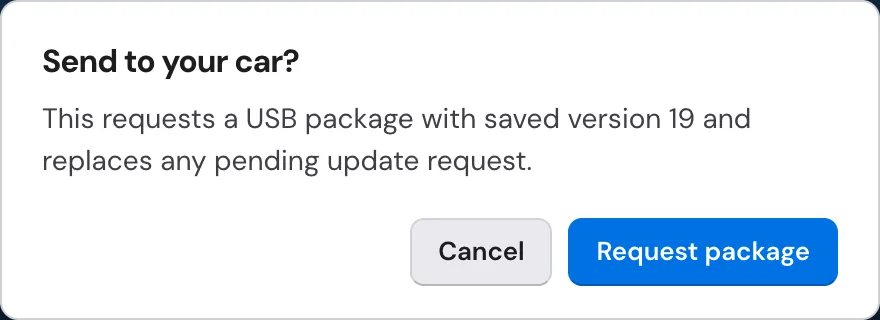
Edits you save after the request do not change the Home version it carries. Save and send again to include them.
While the new package is being prepared, Downloads may still show your previous package. Wait for the new one. See download your ScreenTune package.
Choose and send from My Home designs
Section titled “Choose and send from My Home designs”My Home designs shows the car’s Home under On your car: Sent to your car when the car has the latest saved version of its choice, or Not sent yet with what the car still has.
- Select Use on my car on a design or community theme in the library. The page answers Your car’s Home becomes … after your next update. Nothing is sent yet.
- Select Send to my car under On your car. It appears while the car is behind its choice, including after you save new edits to the design it uses.
- The page answers USB update requested. We’ll email your package when it’s ready. Follow it from See its progress.
A community theme’s page has the same Use on my car and Send to my car buttons. A community theme stays on the version you chose; see community Home themes.
One package carries your Home and Meters
Section titled “One package carries your Home and Meters”A Home request builds a complete ScreenTune package: the car’s current features, the Home version you sent, and your saved Meters list as it stands when preparation starts. You do not need a separate Meters update.
Requests replace each other. Sending Home replaces any update request that has not been delivered yet, including a Meters update. The replacement still carries your saved Meters list, and the car keeps its own Meters choices.
Other packages keep your Home. A Meters update, a feature change, and a new release all carry the Home version you last sent. See send your Meters themes to the car for the Meters side.
Install it in the car
Section titled “Install it in the car”- Follow USB preparation to put the new package on your ScreenTune USB. Replace the old package rather than mixing files from both.
- With the ignition on and Mazda Connect ready, insert the USB into a media/data USB port.
- At the SCREENTUNE prompt, choose UPDATE. If it shows the same ScreenTune version already installed, choose REPAIR; this applies the setup in the new package too.
- Keep the ignition on and USB connected until Mazda Connect restarts and returns to its normal screen.
- Remove the USB. Open Home and check the appearance, shortcuts, and commander knob order while parked.
For a car without ScreenTune, follow install ScreenTune instead. Update ScreenTune explains the prompts and version compatibility.
Updates and REPAIR reinstall your last-sent design
Section titled “Updates and REPAIR reinstall your last-sent design”Home lives in the ScreenTune package, so every UPDATE and REPAIR reinstalls the Home version that package carries. A new package always carries the version you last sent to the car, not edits you saved afterward.
REPAIR with an older USB package reinstalls the Home from that package. Use the newest package in Downloads to keep your current design.
Restore factory Home
Section titled “Restore factory Home”Open More → Restore factory Home… in the editor, or ⋯ → Restore factory Home… under On your car in My Home designs, then select Request package. Download and install the resulting package using the steps above. Your designs stay online, and later packages leave Home at the factory screen until you send a design again.
Choosing Mazda Classic under Themes in the editor changes only your editable design. To put Mazda’s own Home back in the car, use Restore factory Home….
If the control says Your car still has Mazda’s Home screen (in My Home designs, Your car already has Mazda’s Home screen.), no Home design has been requested for this car, so there is nothing to restore. Factory Home is already requested (Factory Home is already your car’s Home.) means the factory selection has already been made; it does not confirm installation in the car.
For save problems or a screen that has not changed, see Home screen questions and troubleshooting.