Wireless CarPlay startup
Start the wireless network sooner and open wireless CarPlay when it connects. Wired CarPlay and Android Auto are unaffected.
For: Cars with factory wireless CarPlay
More about Wireless CarPlay startup →Each change is its own choice. You pick them before or after you buy, and you can change them anytime.
One-time $69, every feature included. Choose them now or after you pay. Full refund within 14 days.
On by default
Included with every order. Turn off any you don’t want.
Always included: first-install backups, a REMOVE option to restore them, and one year of updates.
Optional
Turning off what you don’t use frees memory for the screen and your phone. Up to 95 MB in all.
This affects only Pandora inside Mazda’s Applications menu. The Pandora app still plays through Bluetooth, CarPlay, and Android Auto. Pandora can use up to 6.3 MB. Turning off both Pandora and Stitcher may also stop a helper using up to 7.4 MB.
This is the satellite-radio tile and receiver integrated into Mazda Connect. It also turns off SiriusXM Traffic and Travel Link weather in Mazda navigation. Streaming the SiriusXM phone app over Bluetooth, CarPlay, or Android Auto is unaffected. Its supporting processes can use up to 46.0 MB.
Aha, Pandora, and Stitcher are separate Mazda integrations. You can turn Aha off while keeping Pandora. Aha can use up to 6.9 MB. Turning off both Aha and Stitcher may also stop a helper using up to 5.3 MB.
This is only Mazda’s built-in command button and its speech process. Siri and Google Assistant continue to work through CarPlay and Android Auto. Turning it off can reduce background memory use by up to 8.0 MB.
DAB is the factory digital-radio source used in some countries. FM/AM, Bluetooth, USB audio, and phone apps are separate and stay available. Turning it off can reduce background memory use by up to 5.5 MB.
Stitcher shut down in 2023, so the Mazda integration can no longer provide the service. It can use up to 5.8 MB. Keeping it off may also stop shared helpers when Aha or Pandora is off.
Traffic sign recognition on equipped cars depends on Mazda navigation, even when you use CarPlay or Android Auto for directions. Keep Mazda navigation enabled and its navigation SD card inserted if you use the traffic sign display.
On cars with Active Driving Display, Mazda navigation also controls its brightness, height, and saved driver positions. Keep Mazda navigation enabled if your car has Active Driving Display.
Turning this off removes Mazda’s map, compass, and navigation helper processes. Together, they can account for up to 16.2 MB. CarPlay and Android Auto maps remain available, and the car keeps sending its GPS position to them.
The clock still sets itself from GPS, but it no longer follows time zone or daylight saving changes. Set both under Settings → Clock, as on a car without the navigation SD card.
On cars first sold in Japan, Mazda navigation also shows the ETC card warnings and ETC 2.0/VICS traffic information, and connects the NaviCon phone app. Turning it off stops all of these.
Matched to your car. After you enter your VIN, setup also suggests turning off factory software your car doesn’t have: the CD player, DVD player, and factory TV. Helper processes for the services above stop on their own when those services are off. You can keep any of it running.
Optional · Free
Add any of them during setup, or later.
Start the wireless network sooner and open wireless CarPlay when it connects. Wired CarPlay and Android Auto are unaffected.
For: Cars with factory wireless CarPlay
More about Wireless CarPlay startup →Live gauges on the factory screen, drawn from 80 vehicle readings. TrackTune’s lap timing and track dashboards come with it.
Keep up to 20 themes on the car, and change the list anytime in My ScreenTune.
More about Miatafy Meters →Faster position updates for lap timing and track maps: about 10 a second on MX-5s from about 2021 on, 2 a second on about 2016–2020 cars. Applies while Mazda Navigation isn’t using the GPS.
More about 10 Hz GPS →Tap maps, swipe lists, and type while parked or moving in Android Auto. The commander knob keeps working.
For: Working Android Auto
More about AA Touch →Stop phantom taps without opening the dashboard. Keep the display and commander knob; all touch input is turned off.
For: Screens with ghost touch
More about Disable touchscreen →Keep the radio off unless you choose it. When CarPlay, Android Auto, USB or Bluetooth audio isn’t connected yet or drops out, the car stays quiet instead of switching to FM.
More about No radio auto-play →Included
Both come with every order, with nothing to select in setup.
Themes and shortcuts for your Mazda’s Home screen. Pick a theme, choose what each button opens, and add your own background or button artwork.
Design it free with an email before you buy, or pick a community theme. It installs with your ScreenTune package, and you change it anytime in My ScreenTune.
More about Miatafy Home →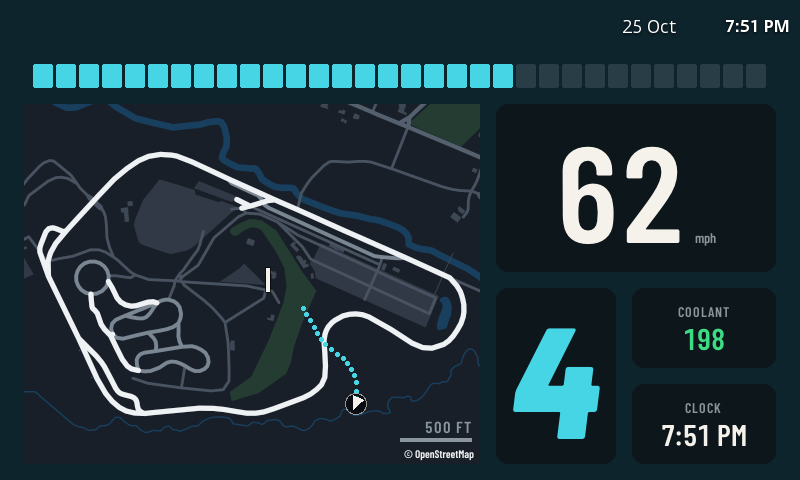
Lap timing, track dashboards and USB drive recording. The lap timer finds the start/finish line itself, and a launch timer measures runs such as 0–60 mph.
Lap timing, launch timing, and track dashboards come with Miatafy Meters. Recording to a USB stick needs Meters or 10 Hz GPS.
More about TrackTune →Then the firmware. On your car’s screen, open Settings → System → About → Version Information. It should start with 74.00.324.
Older version? Update it first. Works on Gen 6 Mazda models with that version. Won’t install on your car? Full refund.
$69
$99
Ships in 1–3 weeks
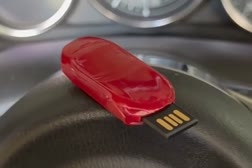
Buy with USB · $99Enter the VIN, check the firmware, and choose features and add-ons, then pay at the end. Setup can email you a link to finish later. Your download is built after payment.
One-time purchase, no subscription. Full refund within 14 days. Licensed to one car. Terms